
 Martin Jørgensen
CrystalDiskInfo – The easiest tool to monitor your SSD and HDD
We tested CrystalDiskInfo on a standard Windows 11 PC, and it’s easy to see why this has become one of the most popular tools for HDD and SSD monitoring. Installation took under a minute, and right after launch we could see temperature, health status, firmware, power-on hours, and detailed SMART values—without changing a single setting.
For many users, this is exactly the kind of tool you need when your PC suddenly feels slow or you suspect an SSD or HDD might be failing.
Features and user experience
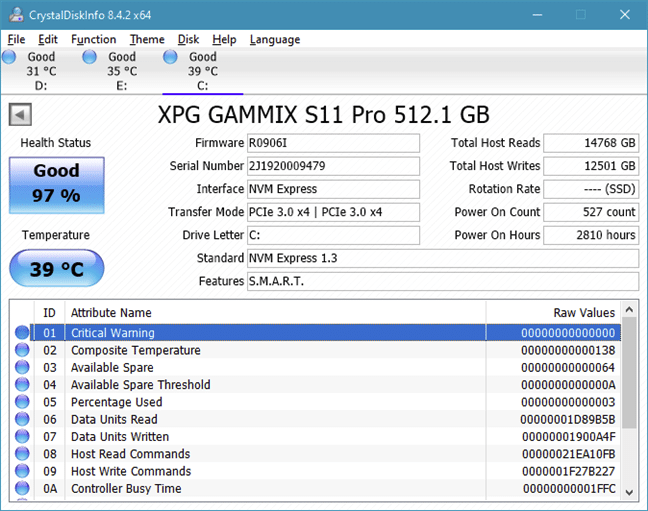
One of the first things we noticed was how quickly CrystalDiskInfo updates data in real time. Temperature and status change instantly under load, and the app uses clear colors and status tags (Good, Caution, Bad) to indicate risk.
The program provides, among other things:
• Real-time temperature
• Health status based on SMART data
• Support for NVMe, SATA, SSD, and HDD
• Firmware version, capacity, and interface type
• Power cycles and power-on hours
• Wear indicators for SSDs
Despite the amount of technical information, it still feels fairly accessible because the most important items are at the top and color-coded.
Interface and design
Visually, CrystalDiskInfo isn’t a modern Windows 11 app. The layout is more reminiscent of classic utilities from Windows XP or Windows 7. During our test, we quickly switched to a dark theme for better contrast, which made a big difference in readability.
The design may not be pretty, but it works. Large numbers, clear temperatures, and a simple table layout make it easy to find the values you need to assess your drive’s health.
Challenges and guidance
In practice, the biggest challenge is that many SMART values are technical. New users can easily be unsure what “Reallocated Sectors Count” or “Wear Leveling Count” actually mean. In our test, we ended up relying far more on the overall health status and color coding than the raw numbers.
CrystalDiskInfo tells you if something is wrong—but it doesn’t always explain what you should do next. Here, you need to know that backing up is priority number one if the status suddenly changes to Caution or Bad.
The software’s strengths and weaknesses in daily use
When we stressed our NVMe SSD with large file copies and game installs, we could watch the temperature rise in real time while health was still reported as Good. We also enabled the alert feature, which popped up a notification when the drive hit our set temperature threshold.
In practice, that makes CrystalDiskInfo a solid early warning system. Many major HDD/SSD issues can be caught before they turn into real data loss—as long as you act when the program starts warning you.
Top 5 tips for CrystalDiskInfo
Keep an eye on Reallocated Sectors Count
Reallocated Sectors Count is one of the most important SMART fields. If the number starts rising, it’s often a sign of physical damage on an HDD. Back up immediately if you see it increasing over time.
Use the temperature alert feature
Set a temperature threshold where you want an alert. On laptops or compact PCs, temperatures can climb quickly under load, and an early warning can reveal poor cooling or a case with insufficient airflow.
Enable autostart with Windows
Let CrystalDiskInfo start automatically with Windows. It will sit in the system tray and continuously monitor your drives without you needing to open it manually.
Switch to a dark theme for better readability
Several dark themes make the numbers easier to read—especially on high-resolution screens or if you spend many hours at the PC. In our testing, we experienced less visual strain with a dark theme.
Combine CrystalDiskInfo with CrystalDiskMark
Use CrystalDiskMark to benchmark speed and CrystalDiskInfo to track health and temperature. It’s a powerful combo if you upgrade hardware often or want to ensure a new SSD performs as advertised.



