
 Martin Jørgensen
DOSBox – The best way to play classic DOS games today
DOSBox is a free, open-source program that emulates a classic DOS environment so you can run old DOS games and retro software on a modern PC (Windows 10/11) without tinkering with old hardware or odd drivers. If you’ve downloaded an old game and see the error “This program cannot be run in DOS mode” or just a black screen, DOSBox is often the fix.
What is DOSBox used for?
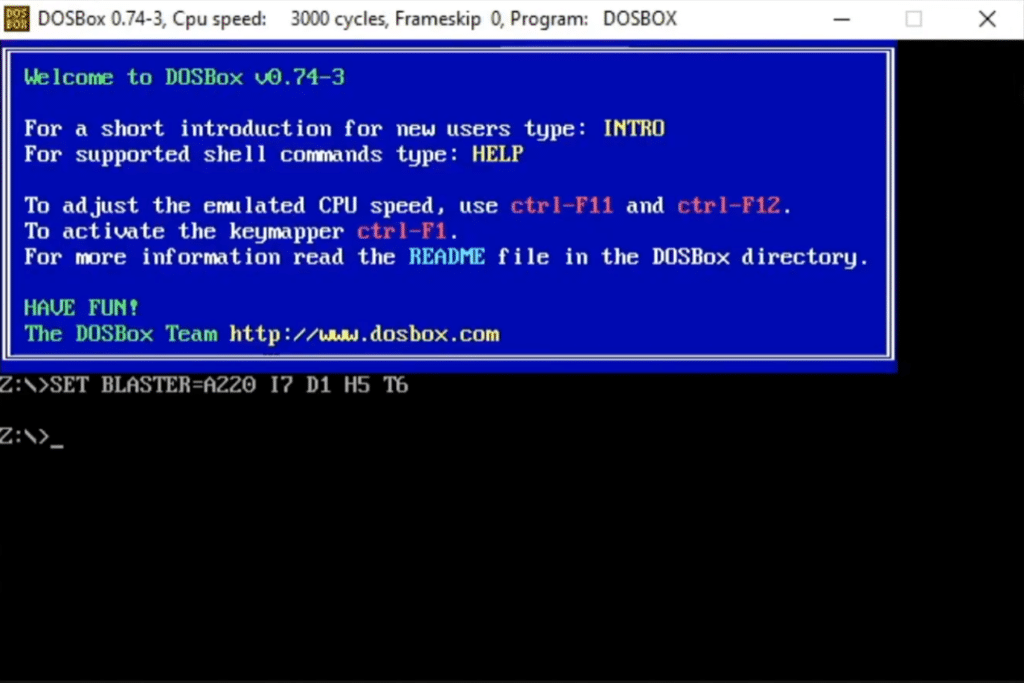
DOSBox is built for games—and you can tell. When it’s dialed in, it feels like powering on an old machine: the right sound, the right speed, and the right “keyboard feel.”
Typical use cases:
- Play classics from the ’80s and ’90s on Windows 11
- Run legacy DOS programs that no longer launch in Windows
- Get proper audio (Sound Blaster/MIDI) in classic titles
- Dial in the right speed (so games don’t run way too fast on modern hardware)
How we got started in our test (Windows 11)
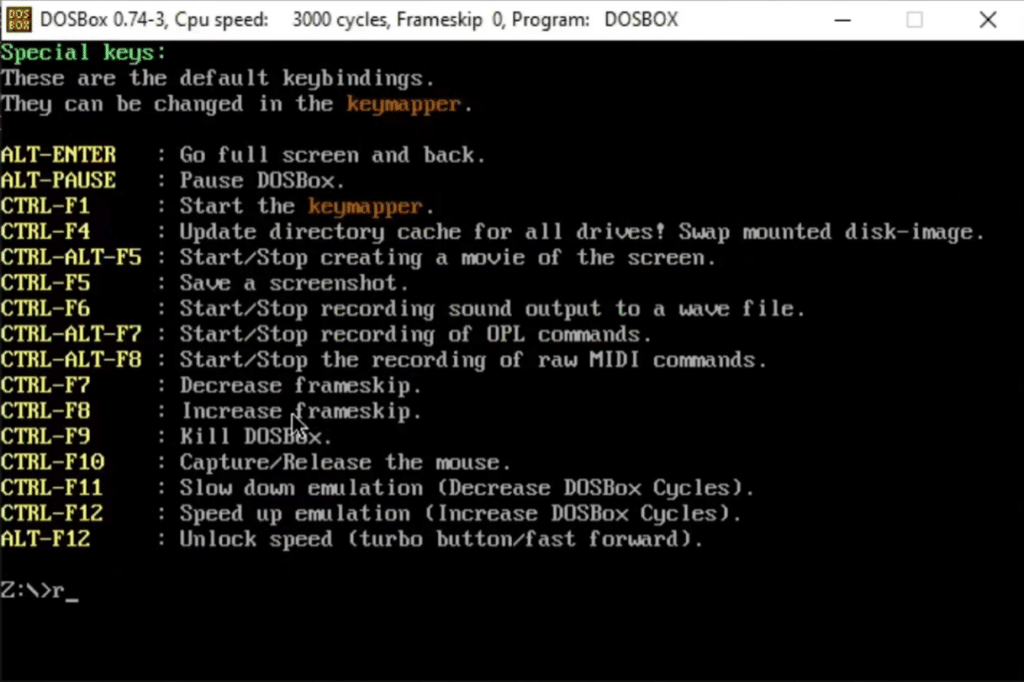
We tested DOSBox on a standard Windows 11 PC and started with the “classic method”: a folder with games, mount it as a drive, then run the game’s .exe. It took a couple of minutes to grasp the flow the first time—but once you’ve done it, it’s quick.
The basic idea is:
- Create a folder on your PC for games (e.g., C:\DOSGames)
- Mount that folder as a drive in DOSBox
- Switch to the drive and run the game’s .exe file
If you have lots of games, a frontend quickly becomes invaluable (more on that below).
Compatibility and features that actually matter
DOSBox isn’t just “an emulator”—it’s a tool with a lot of small details that make a real difference:
- Supports the vast majority of classic DOS games
- Audio (including classic Sound Blaster profiles) and MIDI support
- Keyboard and mouse work in most games—and you can often use a joystick as well
- Can run in a window or full screen
- Cross-platform: works on Windows, macOS, and Linux
In day-to-day use, the most important thing is usually that games start reliably, audio works, and speed stays under control. DOSBox handles this very well, especially with the big, well-known classics.
Frontends make DOSBox much easier
If you don’t want to type commands (totally fair), use a frontend. A frontend is a graphical interface where you create game profiles once, then simply click “Play.”
Frontends are especially good for:
- Saving per-game settings (resolution, audio, CPU/speed)
- Avoiding mount commands every time
- Keeping track of many games on one PC
Popular DOS games that typically work great in DOSBox
If you’re in a retro mood, DOSBox is perfect for, for example:
- Doom and Doom II
- Prince of Persia
- Commander Keen
- Wolfenstein 3D
- Dune II
- Monkey Island (several editions, depending on the version)
(If a game acts up, it’s almost always audio/speed/folders that need adjusting—not that DOSBox “can’t run it.”)
Top 5 tips for DOSBox (faster setup)
Top 5 tips for DOSBox
Small tweaks that typically solve 90% of “why won’t my game work?”—especially audio, folders, and speed.
Keep your games in a single folder (so mounting is always simple)
For example, create a folder like C:\DOSGames and put each game in its own subfolder. Then you can mount the same place every time and avoid messy paths.
If the game runs too fast or too slow, it’s the “cycles”
Many DOS games are sensitive to speed. Adjust CPU speed (cycles) until the game feels right. This is often where “it works but feels off” gets fixed.
No sound? Start with Sound Blaster settings in the game’s setup
Many games have a separate SETUP.EXE where you choose the sound card. Usually pick Sound Blaster and try standard IRQ/DMA if you’re unsure. That surprisingly often fixes it.
Use a frontend if you have more than 2–3 games
Frontends make it click-simple: per-game profiles, saved settings, and no commands. It’s especially great if multiple people in the household use the same PC.
Save an auto-start setup for your favorite game
Once you’ve nailed the right configuration, save it as the default profile so the game starts with the right folders, audio, and speed every time. It saves time—especially with old classics.



