
 Martin Jørgensen
Gamma Control 6 “Phoenix” makes dark games brighter with hotkeys (without hogging resources)
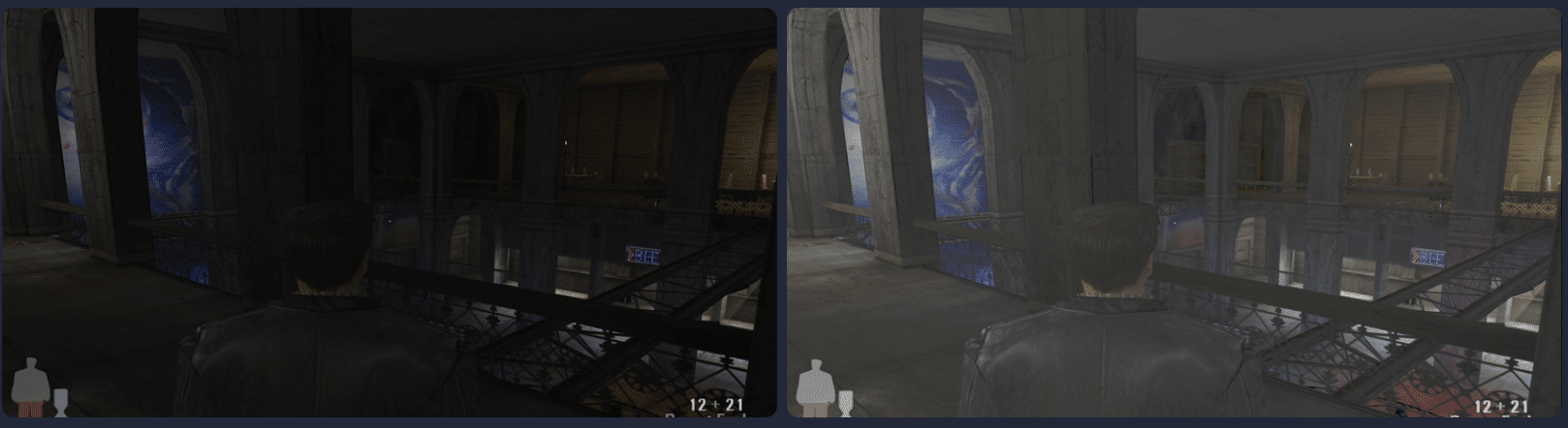
Gamma Control 6 “Phoenix” is a lightweight Windows utility that lets you adjust your screen’s gamma with keyboard shortcuts and the mouse—perfect when a game or scene is way too dark and you don’t want to Alt‑Tab into driver/Windows settings. You can also adjust via a simple slider, and the app can live quietly in the system tray while you play.
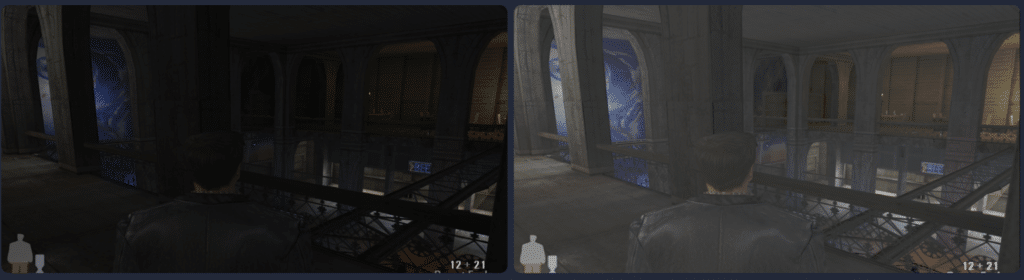
In practice, the fast “gamma up/down” is what makes the Phoenix version interesting: you can map your own keybinds per game/app via profiles—one setup for CS2, another for Minecraft, and a third for work/photo.
Gameplay and features that actually make a difference
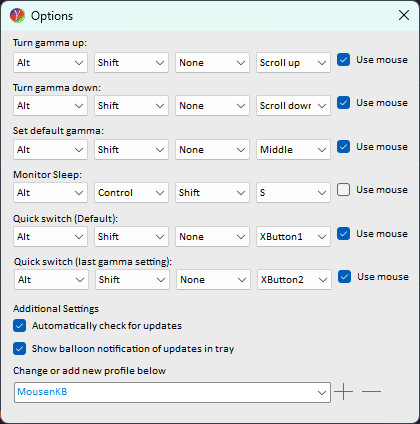
During our test on a standard Windows 11 PC (and an additional Windows 10 machine), installation was quick, and the app felt as “light” as promised: launch, pick your gamma, bind a couple of genveje – done. Once it runs in the background, you’ll barely notice it.
The handy part is the classic shortcuts (all customizable): gamma up/down, back to default, and a “revert to last setting” hotkey. That makes it super useful in full screen, where you’d otherwise fiddle with in‑game brightness and lose the right balance.
Multi-monitor and profiles: where Phoenix really shines
Multi‑monitor used to trip up gamma tools, but Gamma Control 6 is clearly built with “multiple displays + tray” in mind. The profile system also means you don’t need the same aggressive gamma everywhere—you can keep a “lift dark corners” profile for games and a more neutral one for daglig brug.
Antivirus/false positives – what US users should know
Gamma tools have historically triggered antivirus solutions (especially if they use global hooks to catch keypresses in full screen). The developer behind Phoenix has addressed those triggers by replacing the old hook method and making update/background flows less “dramatic” to scanners.
The important thing for almindelige brugere: VirusTotal is primarily an aggregator, and if one or a few engines flag something, it doesn’t automatically mean malware—but it can be annoying in practice if SmartScreen/AV is extra strict. VirusTotal itself recommends reporting false positives to the relevant AV vendor, since they’re the ones who can correct the detection.
Our advice at Holyfile.com: download from the official product page and stick to the latest Phoenix build—especially because it’s tuned to reduce unnecessary AV alerts.
Installation, requirements, and compatibility
Gamma Control 6 requires Windows 8.1 or newer, and it runs on both 32‑ and 64‑bit editions of Windows 8.1/10/11.
It also uses .NET 8 and may require the Visual C++ 2015–2022 Redistributable (x86)—something many PCs already have installed.
Top 5 tips for Gamma Control 6 “Phoenix”
Top 5 tips for Gamma Control 6 “Phoenix”
Create a single “Gaming” profile and bind gamma to your mouse scroll
If you often play in dark environments, make a dedicated profile for games (e.g., “CS2” or “Minecraft”) and bind gamma up/down to the scroll wheel or extra mouse buttons. It’s the fastest way to tweak brightness without leaving full screen.
Use “revert to last gamma” as your panic button
Save a solid baseline and brug “revert to last setting” when you overshoot gamma during a round. It’s much easier to hit “just bright enough” than starting over every time.
Set separate profiles for work and gaming if you have multiple displays
On multi‑monitor setups, use a neutral profile for work (less eye strain) and a more aggressive “brighten up” profile for gaming. Switch profiles from the tray so you don’t end up working with an overly bright gamma.
If full screen blocks gamma, use the in‑app help guide
In rare cases, full‑screen/exclusive rendering can interfere with gamma control. Check the Help section in Gamma Control and use the recommended workaround—you can usually fix it without changing anything permanently in Windows.
If your antivirus complains: allow the file—only from the official source
Gamma tools can sometimes cause false positives. If your AV reacts, whitelist only the newest Phoenix installer from the official DesktopNerds site. Avoid “reuploads” and old builds to minimize SmartScreen/AV friction.



