
 Martin Jørgensen
HeavyLoad pushes your PC to the limit
HeavyLoad is a free Windows stress-testing tool designed to push your computer right to the edge. It’s typically used to test stability, cooling, and hardware faults—on everyday PCs, workstations, and servers.
During our testing on a standard Windows 11 PC, HeavyLoad installed quickly with no extra bundled software. Just minutes after starting, the CPU, RAM, and disk were clearly under load, and the fans spun up. That makes it ideal for uncovering thermal issues, unstable overclock settings, or weaknesses in the power supply (PSU).
Stress test CPU, RAM, disk, and GPU
HeavyLoad stands out from many other testing tools by being able to stress multiple components at the same time. Instead of only hammering the CPU, you can combine tests to create a more realistic worst-case scenario.
You can:
- Stress the CPU with complex calculations
- Fill up RAM to test memory stability
- Write large test files to your hard drive or SSD
- Stress the GPU to test the graphics card and cooling
Everything is controlled through a simple interface where you choose which tests to run and when to stop them.
User interface and workflow during testing
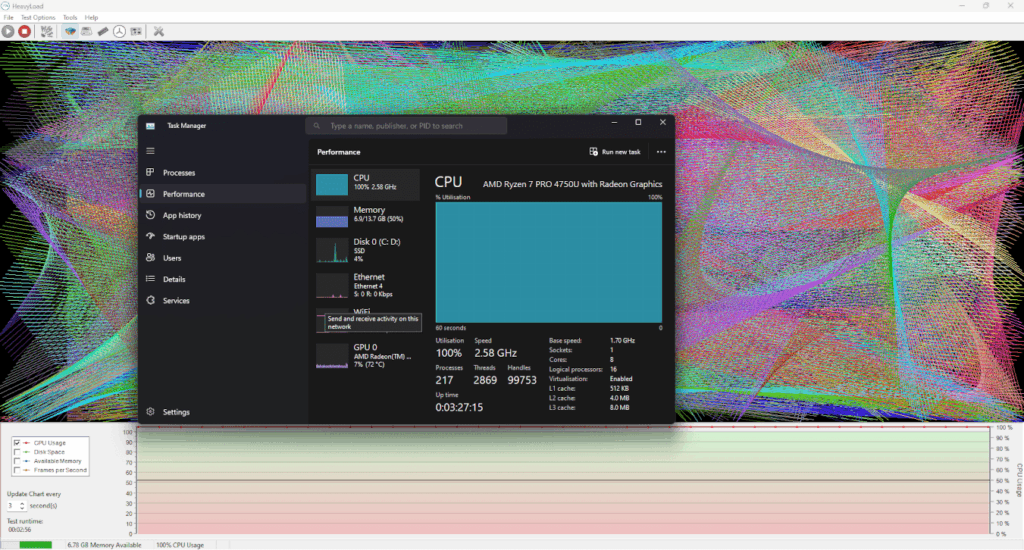
The interface is very simple—almost old-school—but that actually works in the app’s favor. During testing it was easy to toggle individual loads on and off, and you always have a clear overview of what’s happening.
There are no built‑in charts or advanced reports, so HeavyLoad works best alongside monitoring software such as HWMonitor or MSI Afterburner if you want real‑time temperatures and clock speeds.
When is HeavyLoad most useful?
HeavyLoad is especially helpful in these situations:
- After building a new PC to verify stability
- If you suspect overheating or random shutdowns
- Before deploying servers or workstations
- When testing cooling solutions and fan setups
It’s not a benchmarking tool, but a pure stress‑testing utility—and it does that job very well.
Top 5 tips for HeavyLoad
Use external temperature monitoring
HeavyLoad doesn’t display temperatures itself, so use an additional tool to watch CPU and GPU temps.
Start with one test at a time
Run CPU, RAM, and disk separately the first time—then combine them.
Watch for throttling
If performance drops after a few minutes, it may indicate thermal issues.
Test for at least 15–30 minutes
Short tests don’t always catch instability. Give the system time.
Stop the test manually if problems occur
If the system freezes or gets extremely hot, stop the test immediately.



