
 Martin Jørgensen
Download LibreOffice – free Office suite
LibreOffice is a free office suite with a word processor, spreadsheets, presentations, and more — all in one installation. It’s available in English and many other languages and is one of the most obvious free alternatives to Microsoft Office.
We tested LibreOffice on a standard Windows 11 PC and worked with Word documents, Excel spreadsheets, presentations, and PDF export. The first thing you notice is how complete the suite feels. There are no ads, no subscription, and no requirement to create an account before you can get started.
The interface isn’t quite as polished as the latest versions of Microsoft 365, but the features are laid out logically. After a short time, we could navigate without issues, and Writer and Calc in particular felt familiar quickly.
What is LibreOffice?

LibreOffice is a free, open-source office suite developed with support from the nonprofit The Document Foundation.
The suite includes Writer for text documents, Calc for spreadsheets, Impress for presentations, Draw for diagrams and illustrations, Base for databases, and Math for mathematical formulas.
You can use LibreOffice at home, in school, or in business without paying for a license or subscription. Documents can be saved locally on your computer, so you’re not dependent on a specific cloud service or an internet connection.
A complete free Office suite
LibreOffice isn’t just a free word processor. The installation includes a full office suite where the apps share the same interface, settings, and file handling.
LibreOffice Writer – the alternative to Microsoft Word
Writer is the suite’s word processor and the tool most people will likely use the most. Create letters, reports, assignments, resumes, and long-form documents.
The program supports, among other things:
- Styles and automatic table of contents
- Headers, footers, and page numbers
- Comments and track changes
- Mail merge
- Templates
- Images, tables, and charts
- Direct export to PDF
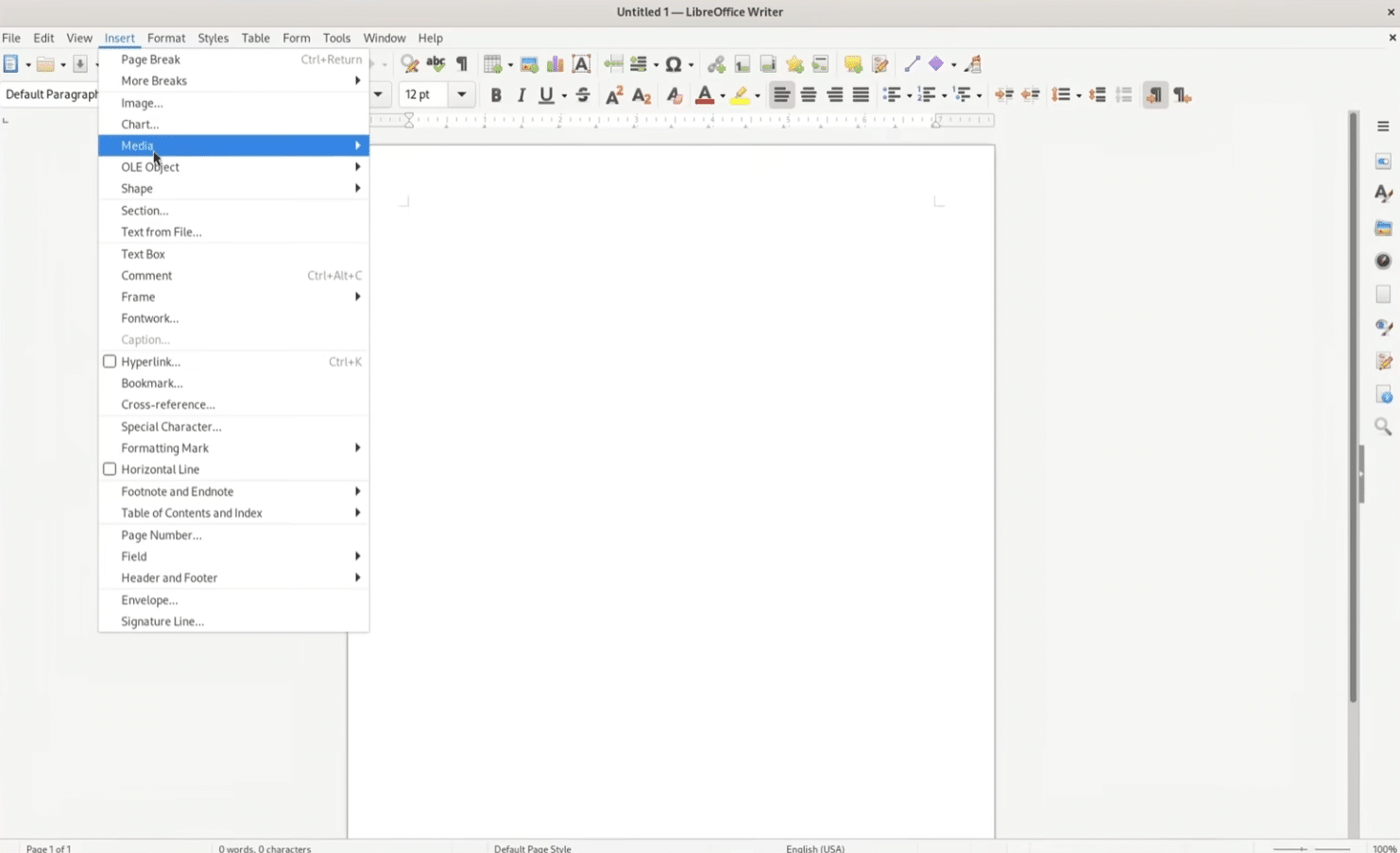
In our test, Writer was fast and stable, even when opening long documents with images, tables, and multiple styles. The interface feels a bit more traditional than Word, but many users will actually prefer the classic menus.
LibreOffice Calc – free alternative to Excel
Calc is a comprehensive spreadsheet tool you can use for everything from a simple household budget to large tables with formulas, filters, and charts.
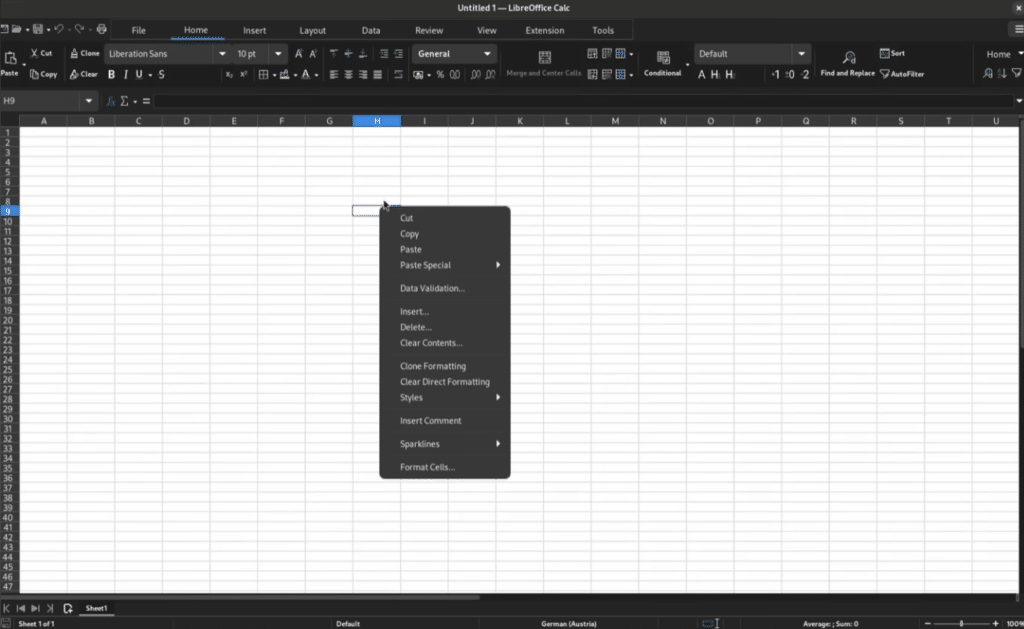
We tested Calc with both XLSX files and spreadsheets created directly in LibreOffice. Common formulas, sorting, data validation, and charts worked flawlessly. For advanced Excel files that use macros or very specific formatting, you should test the results carefully.
For everyday budgets, calculations, membership lists, and smaller data analyses, Calc is more than sufficient for most people.
LibreOffice Impress – presentations without PowerPoint
Impress is used for presentations and is structurally similar to Microsoft PowerPoint. Work with slides, animations, transitions, images, video, and presenter notes.
The selection of modern default templates isn’t as strong as Microsoft’s, Canva’s, or Google Slides’. On the other hand, you get fine-grained control over every element, and the program works well for school assignments, meetings, and typical business presentations.
Draw, Base, and Math
Draw is a surprisingly useful tool for flowcharts, small illustrations, PDF editing, and technical diagrams.
Base is intended for databases and can work with external data sources. Some Base features require Java, which is worth noting if you plan to use it in professional environments.
Math is a specialized tool for mathematical formulas — especially relevant for students, educators, and technical users.
How LibreOffice performed in our tests
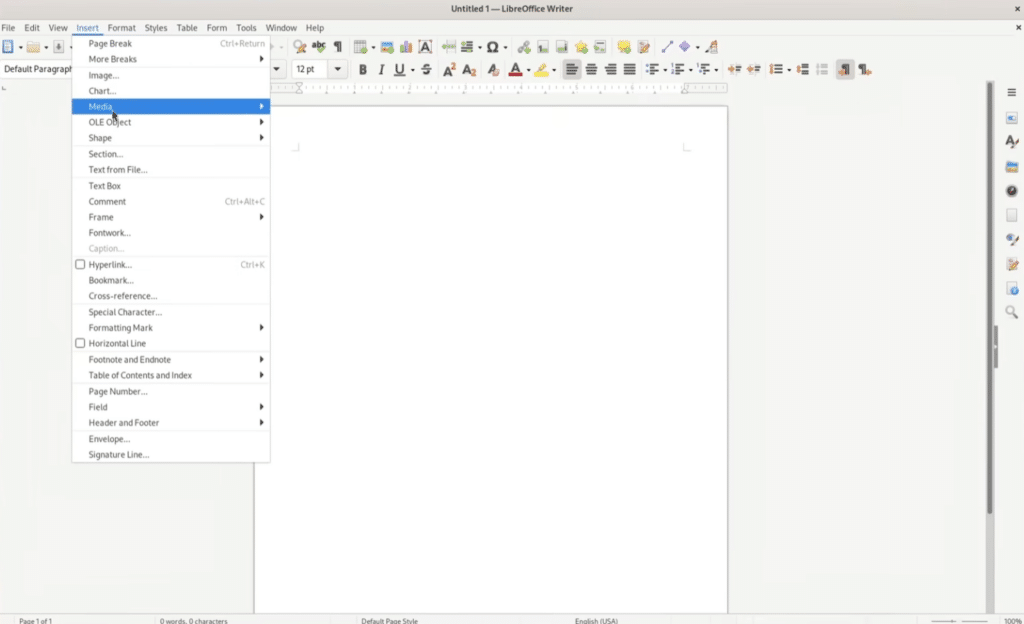
We installed LibreOffice on Windows 11 and mainly used Writer and Calc. Installation was straightforward, and the apps launched quickly on our test machine.
The best thing about LibreOffice is that it doesn’t feel like a stripped-down free edition. We found features for styles, comments, track changes, charts, databases, advanced formulas, and PDF export without installing extra add-ons.
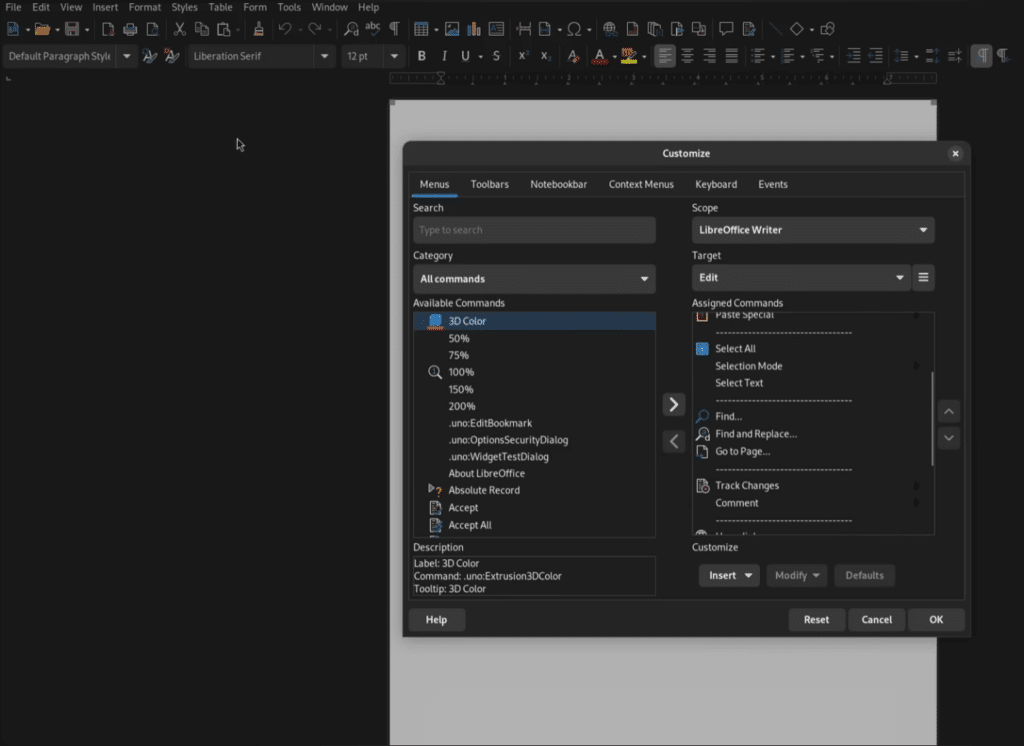
We could also switch between a classic toolbar and a more modern tabbed interface. It’s a small detail, but it makes the transition easier if you’re coming directly from newer versions of Microsoft Office.
Dark mode works quite well, although some dialogs and icons don’t always look as consistent as the rest of the program. It’s not a showstopper, but it’s one of the places where you can still feel the difference between LibreOffice and an expensive commercial suite.
Can LibreOffice open Word, Excel, and PowerPoint files?
LibreOffice can open and save documents in formats such as DOCX, XLSX, and PPTX. That means you can usually continue working with files created in Microsoft Word, Excel, or PowerPoint.
Compatibility is good — but not perfect.
In our tests, common documents, spreadsheets, and presentations displayed almost as expected. Issues typically arise with more complex files that use special fonts, advanced macros, SmartArt, embedded objects, or very precise page layouts.
We recommend the following workflow:
- Use LibreOffice’s ODF formats for documents you’ll keep editing yourself.
- Save a copy as DOCX, XLSX, or PPTX when sharing with Microsoft Office users.
- Export finished documents to PDF when the layout must not change.
- Double-check important documents before sending them to a customer, government agency, or partner.
LibreOffice supports Word, Excel, and PowerPoint formats, but its native default is the open OpenDocument format.
LibreOffice 26.2.5 – the latest update
LibreOffice 26.2.5 was released on July 23, 2026 and is the fifth maintenance update to the 26.2 series. The update primarily focuses on bug fixes and improved stability.
A notable change is that the Skia graphics engine on Windows and macOS has been made experimental again after reports of crashes and apps freezing after upgrading from older versions.
The larger LibreOffice 26.2 update introduced, among other things:
- Import and export of Markdown documents
- Connector lines between objects in Writer and Calc
- Improved scrolling performance and EPUB export
- Faster handling of certain charts and graphics files
- Better handling of complex documents
- Compatibility improvements with other office suites
The official download page offers LibreOffice 26.2.5 for Windows, macOS, and Linux.
If you’re still on LibreOffice 25.8, you should update. That release reached the end of its support period on June 12, 2026 and no longer receives security updates.
LibreOffice or Microsoft 365?
LibreOffice and Microsoft 365 solve many of the same tasks, but they don’t necessarily target the same users.
| Feature | LibreOffice | Microsoft 365 |
|---|---|---|
| Price | Free | Paid subscription or license |
| Account required | No | Usually yes |
| Offline work | Very strong | Supported |
| Cloud collaboration | Limited | One of the suite’s biggest strengths |
| Word and Excel compatibility | Good, but not perfect | Best with Microsoft’s own formats |
| Open source | Yes | No |
| Windows | Yes | Yes |
| Mac | Yes | Yes |
| Linux | Yes | No full official desktop suite |
LibreOffice is especially compelling if you mainly work locally and don’t need real-time collaboration in the browser.
Microsoft 365 is still the safest pick if your workplace relies on advanced Excel models, VBA macros, SharePoint, Teams, and documents with tightly locked Word layouts.
LibreOffice vs. OpenOffice
LibreOffice originally stems from OpenOffice.org, and the programs still share similarities. Today, however, LibreOffice is the better choice for the vast majority of users.
LibreOffice receives more frequent feature updates and generally has better support for modern Microsoft Office formats. The interface is more customizable, and development is clearly more active.
OpenOffice can still handle very basic writing and spreadsheet tasks, but we don’t see a compelling reason to choose it over LibreOffice on a new computer.
Top 5 LibreOffice tips
Paste text without weird formatting
Press Ctrl + Shift + V when pasting from a website or PDF. Choose Unformatted Text to avoid foreign fonts, colors, and line spacing.
Use styles in long documents
Open Styles with F11 and stick to the built‑in heading levels. It keeps documents consistent and makes creating an automatic table of contents much easier.
Enable automatic backups
Go to Tools → Options → Load/Save → General and enable Always create backup copy. It can save hours of work if a file gets corrupted or closed improperly.
Make the UI feel like Microsoft Office
Under View → User Interface, try the Tabbed view. It’s closer to the Ribbon in newer versions of Word and Excel and can make the switch easier.
Export important documents as PDF
Use File → Export As → Export as PDF when the layout must not change. You can control image quality, links, security, and which pages to include.
Frequently asked questions about LibreOffice
Is LibreOffice really free?
Yes. LibreOffice is free and open source and can be used at home, in education, and in businesses with no subscription.
Is LibreOffice available in English?
Yes. The interface, menus, and spellcheck are available in English (and many other languages). On the official download page you can choose OS and language.
Can LibreOffice open Word documents?
Yes. Writer can open and save DOC and DOCX files. Very advanced documents may see minor changes to fonts, spacing, or page layout.
Can LibreOffice replace Microsoft Office?
For many home users, students, and small businesses, yes. Users who rely on advanced macros and Microsoft’s cloud collaboration may still miss certain features.
Does LibreOffice work on Windows 11 and Mac?
Yes. LibreOffice supports Windows 10 and 11, recent macOS versions, and Linux. On Mac there are builds for both Intel processors and Apple Silicon.
One of the best free Office alternatives
LibreOffice isn’t necessarily the right solution for a company that lives in Microsoft Teams, SharePoint, and advanced Excel models. For most home users, students, and small businesses, though, it’s hard to find a free office suite that delivers more.
Writer, Calc, and Impress cover everyday office tasks convincingly, and the ability to work without a subscription or a forced cloud account is a real plus.
We’d love to see more modern default templates and even better compatibility with the most advanced Microsoft Office files. That said, LibreOffice remains our favorite free Office alternative — and clearly the one we’d pick over OpenOffice.



