
 Martin Jørgensen
Rufus – create a bootable USB in minutes
Rufus is one of the fastest and most reliable tools for creating a bootable USB for Windows, Linux, or various rescue tools. It’s free, open-source, and tiny—which is why it’s been a favorite for years among technicians, gamers, and everyday users.
We tested 1 on a standard Windows 11 PC, and the process took under five minutes from download to a fully bootable Windows 11 USB drive. Rufus isn’t flashy or full of animations—it’s built to do one job, and it does it extremely well.
Features and ease of use
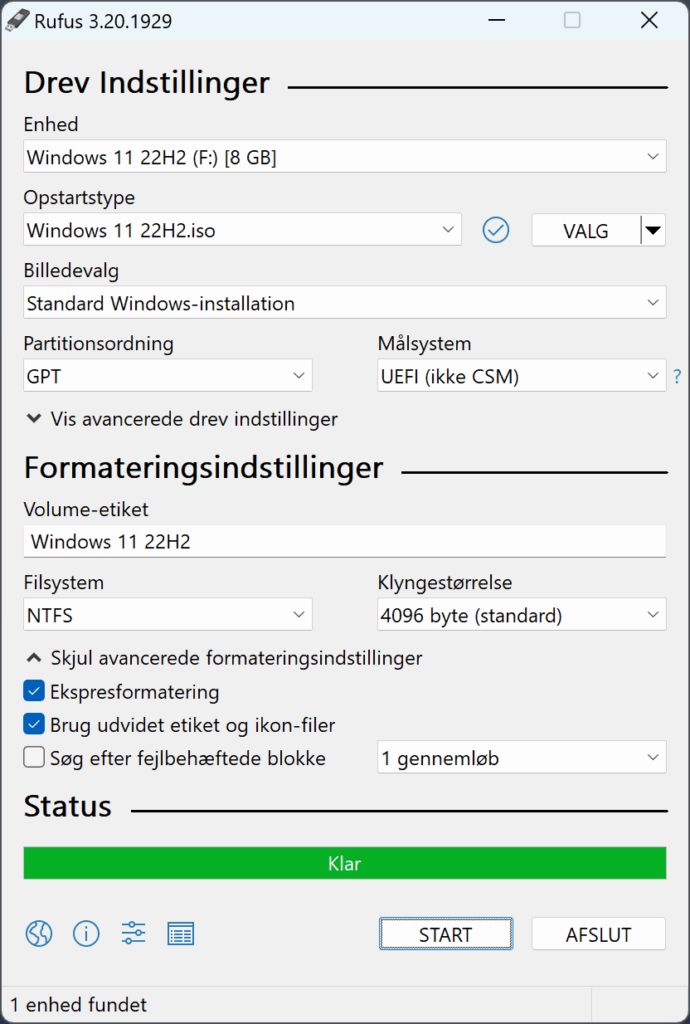
Rufus can do more than you might think at first glance. It supports:
• Creating bootable USB drives from ISO, IMG, and VHD
• Fast detection of the correct USB setup
• Support for both BIOS and UEFI boot
• Windows To Go (without extra software)
• Multiple Linux distributions with persistence
• Download Windows 10/11 ISO files directly in Rufus
The interface is intentionally simple: pick your USB drive, choose the ISO, click Start. Most fields are filled in automatically. For Windows installs, Rufus suggests the correct partition scheme (GPT/MBR), minimizing errors.
Compatibility
Rufus runs on:
🖥️ Windows 10
🖥️ Windows 11
🖥️ (Can run on XP/Vista/7, but no longer recommended)
It can create bootable USB drives for:
• Windows 7, 8.1, 10, and 11
• Ubuntu, Fedora, Linux Mint, Arch, etc.
• Firmware tools, BIOS updates, and rescue environments
It works perfectly on US English Windows installations and requires no special setup.
Rufus vs. alternatives
There are many USB tools, but Rufus still ranks among the fastest.
1: Lets you keep multiple ISOs on the same USB (handy) but is slower and less stable for Windows installations.
balenaEtcher: Great design, but often slower and has had security issues in the past.
UNetbootin: Largely phased out in 2025 and performs poorly with Windows ISOs.
For the classic “create a Windows USB” job, Rufus remains the most stable choice.
Our hands-on test in the US
During testing, Rufus automatically measured the USB drive’s speed and suggested the fastest formatting method. The drive was formatted correctly on the first try, and the Windows 11 installation started without errors.
For Linux ISOs, note that some distros require persistence to save changes—this isn’t a Rufus limitation but a Linux requirement.
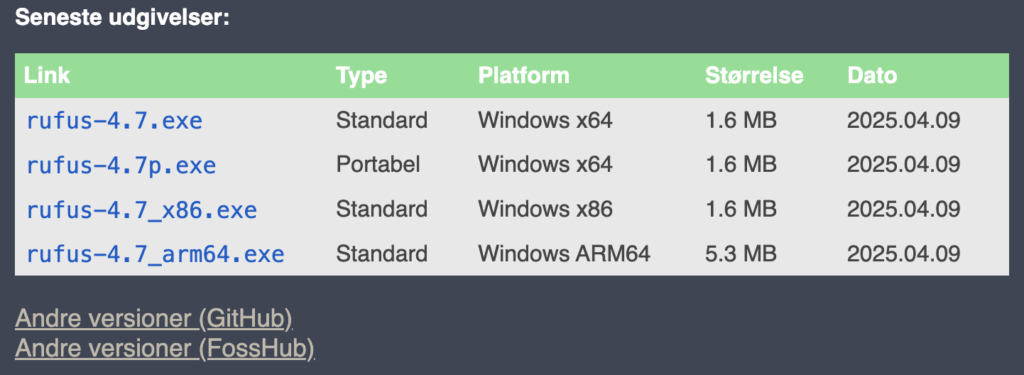
Note: the developer’s website contains a lot of ads. Look for the following area to download:
Tips and tricks for Rufus
Use the built-in ISO downloader
Rufus can fetch Windows 10/11 ISOs directly—perfect if Microsoft’s site gives you trouble.
Unlock advanced settings
Press Alt + E to access “hidden settings” where you can tweak extra parameters for power users.
Use persistence for Linux
Some distros support persistent storage, so your changes are saved.
Set the correct partition table
GPT for modern UEFI PCs, MBR for older BIOS machines.
Use a fast USB 3.0 drive
It makes a big difference—especially for Windows 11 installations.
Who should use Rufus?
• Users who need a clean Windows install
• IT technicians setting up many PCs
• Gamers who swap hardware and reinstall often
• Linux users testing distros
• Anyone who needs a fast, stable, ad-free tool
Rufus FAQ
Launch Rufus, select your USB drive, choose the ISO file, and click Start. Most settings are chosen automatically, so it only takes a few minutes.
Yes. Rufus can create a USB for Windows 11 and download the ISO directly via its built-in downloader.
GPT is used for modern UEFI-based PCs, while MBR is used for older BIOS systems. Rufus suggests the correct type automatically.
Yes. Rufus supports Ubuntu, Fedora, Linux Mint, Arch, and many other Linux distributions. Some distros even offer persistence.
No. Rufus runs only on Windows, but the USB you create can still be used to install Linux or Windows on other devices.



