 Martin Jørgensen
Play Android games on PC with NoxPlayer
NoxPlayer is a free Android emulator for Windows and Mac that lets you run Android apps and games directly on your computer. It’s especially popular with gamers who want better performance, keyboard controls, and a bigger screen than on mobile.
We tested NoxPlayer on a standard Windows 11 PC with mid-range hardware, and installation was quick. Setup did require a bit of tweaking to really nail performance—especially with more demanding games.
Android emulator built for gaming
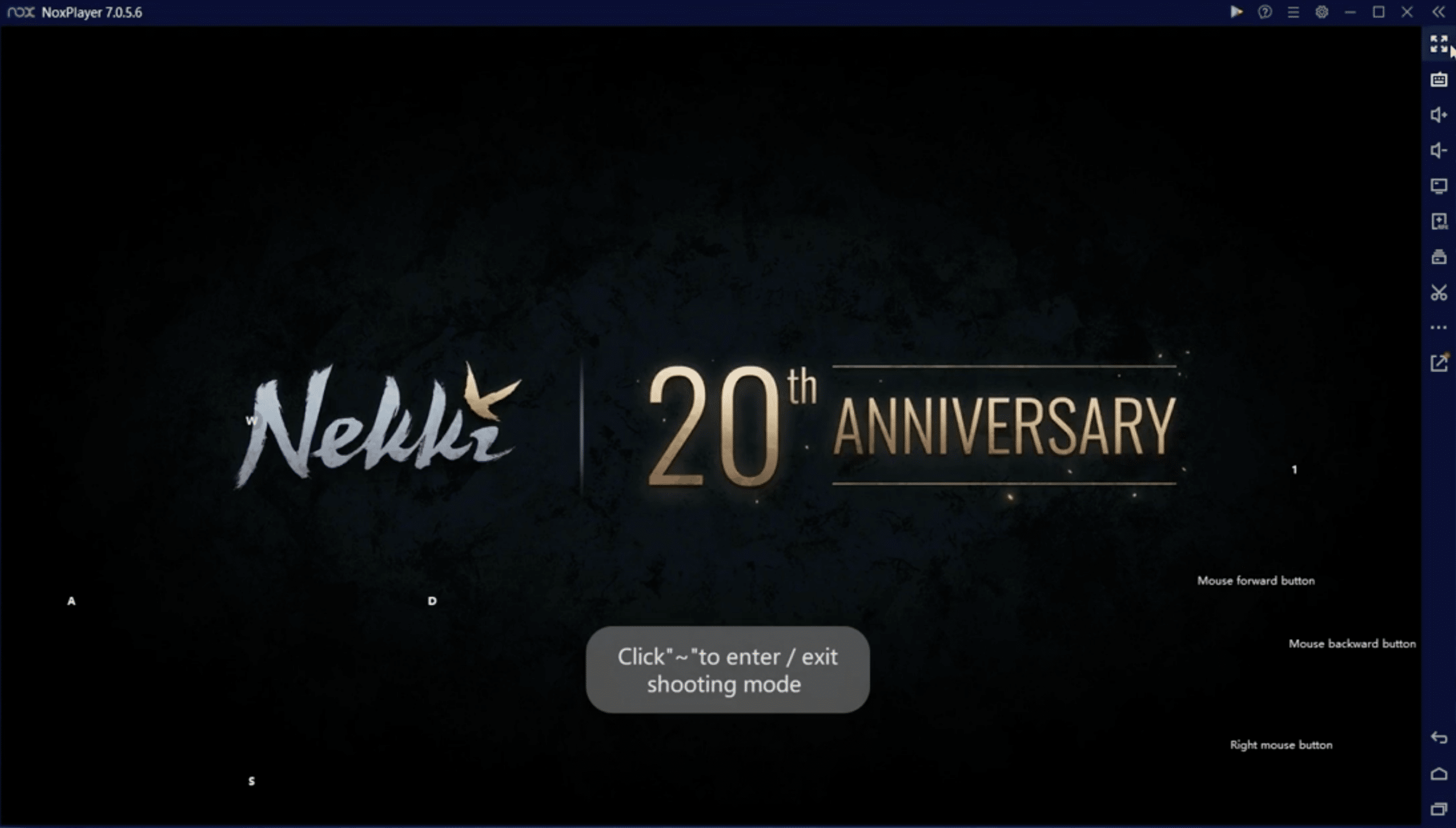
NoxPlayer is built with gaming in mind. The emulator supports keyboard, mouse, and gamepads, and you can map controls so they fit each game perfectly.
Performance is generally stable, especially in popular titles like Call of Duty: Mobile, Clash of Clans, and PUBG Mobile. Compared with some competitors we experienced fewer micro-stutters, but results clearly depend on how the emulator is configured.
A major advantage is that NoxPlayer gives you access to Android-level settings, so you can manually adjust CPU cores, RAM allocation, and resolution.
Interface and real-world setup
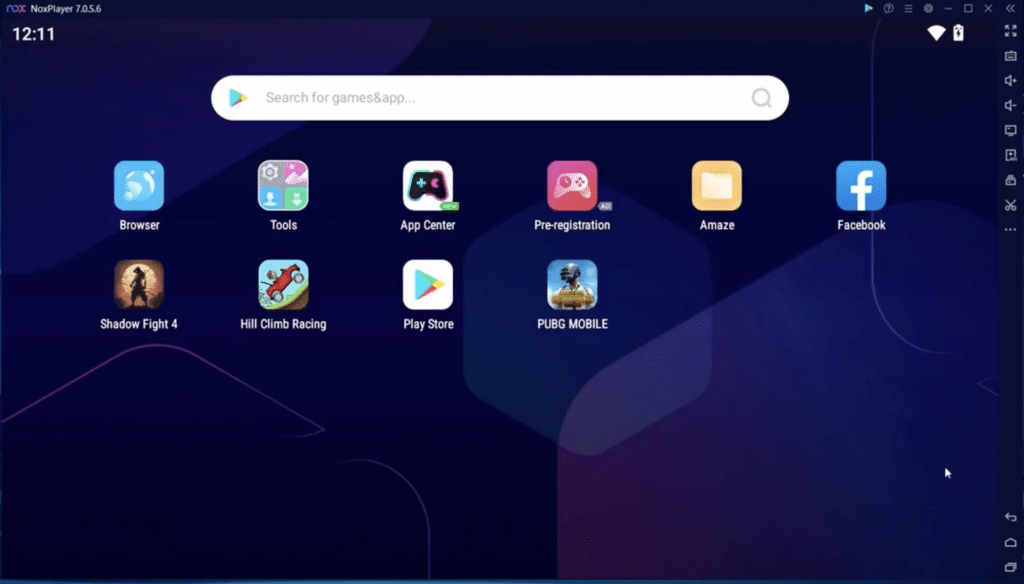
The interface is fairly simple, though not quite as polished as 1. In return you get more control under the hood, which power users will appreciate.
On first launch, NoxPlayer walks you through signing in with your Google account, just like on a physical Android device. After that, apps can be installed directly from Google Play or via APK files.
One thing we noticed in testing is that the emulator can feel heavy at startup, especially on older PCs. Once it’s running, the experience is noticeably smoother.
Advanced features and handy tools
NoxPlayer includes several features that aren’t always highlighted but are useful day to day:
– Multi-Instance so you can run multiple Android sessions at once
– Macro recording for automation in games
– Screen recording directly from the emulator
– Root access (optional) for advanced apps
The Multi-Instance feature is especially popular with strategy players who want to manage multiple accounts at the same time.
Is NoxPlayer safe to use?
A common question from US users is whether NoxPlayer is safe. In our tests it wasn’t flagged by Microsoft Defender, and the installer contained no obvious adware. It’s important to decline any extra offers during setup and always download the emulator from the official source.
NoxPlayer is updated regularly, but support and the changelog aren’t always fully transparent, which slightly affects trust.
Alternatives to NoxPlayer
There are several strong alternatives, depending on your needs:
– BlueStacks, which is more beginner-friendly
– LDPlayer, which often performs well in benchmarks
– Android Studio Emulator, which is more technical and not aimed at gaming
NoxPlayer hits a solid balance between flexibility and performance, especially for experienced users.
Top 5 NoxPlayer tips
Manually adjust CPU and RAM
Open NoxPlayer’s settings and tune how many CPU cores and how much RAM the emulator may use. The defaults are usually conservative to work on as many systems as possible, but on a typical gaming PC you can often allocate more resources without issues. In our tests, giving extra RAM produced a clear boost in demanding shooters and strategy games.
Enable keyboard mapping
Spend time configuring keyboard and mouse controls for each game. NoxPlayer lets you place virtual buttons directly over a game’s touch controls, delivering much more precise and comfortable input. It may seem minor, but the difference is significant—especially in action and PvP titles.
Use Multi-Instance wisely
Multi-Instance is great if you want to run multiple games or accounts at the same time, but it’s also demanding. Start with one extra instance and watch CPU and RAM usage in Task Manager. If your PC begins to struggle, it’s better to scale back than push the system too hard—stability matters more than instance count.
Run as administrator
On some Windows systems, NoxPlayer can show graphical glitches, missed inputs, or unstable performance. Launching the program as an administrator gives the emulator better access to system resources, which in practice often reduces errors and stabilizes graphics. It’s a simple trick that fixes a surprising number of small issues.
Keep the emulator updated
New Android games and updates frequently change emulator requirements. Make sure NoxPlayer is always on the latest version. Updates typically improve compatibility, performance, and security—and can be the difference between a new game running smoothly or not launching at all.
NoxPlayer FAQ
Yes, NoxPlayer is free to use. You can download the emulator and play Android games on PC without a subscription. You may see recommendations for extra software during installation, which you can decline.
NoxPlayer is generally considered safe if you download it from the official website. In our tests it wasn’t flagged by Microsoft Defender, but we recommend declining any optional offers during setup.
Yes, NoxPlayer is designed to run Android games on PC. The emulator supports keyboard, mouse, and gamepads, which gives you a clear advantage in many games compared to mobile.
Yes, NoxPlayer works on Windows 11. We tested the emulator on a Windows 11 PC where it ran stably after adjusting the CPU and RAM settings.
BlueStacks is often more beginner-friendly, while NoxPlayer offers more advanced settings. NoxPlayer is especially popular among users who want more control over performance, keyboard mapping, and Multi-Instance.