 Martin Jørgensen
PDF-XChange Viewer — fast PDF reader with powerful annotation tools
PDF-XChange Viewer is a free PDF reader for Windows, best known for its speed, tabbed viewing, and solid tools for comments, highlights, and forms.
The app is no longer under active development and has officially been replaced by PDF-XChange Editor. Even so, the classic Viewer version can still be downloaded from the developer’s own page for discontinued products, where the latest stable version is 2.5.322.10, updated December 16, 2018. The developer also describes Viewer as replaced by PDF-XChange Editor.
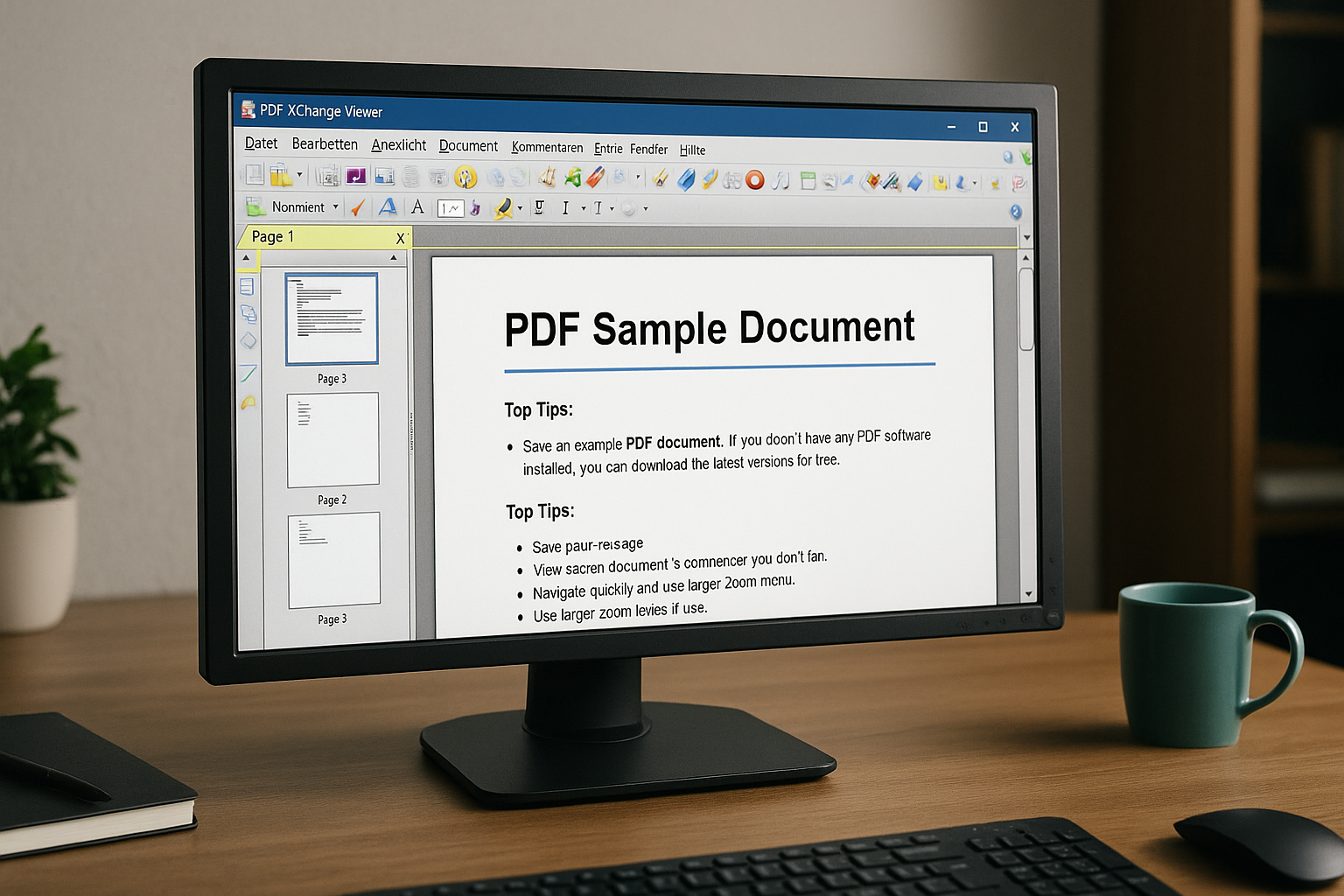
We tested PDF-XChange Viewer on a Windows 11 PC, and the first thing we noticed was the speed. The program opens PDF files almost instantly, and tabs make it easy to work with several documents at the same time. The interface feels dated, but that simple, classic style is also part of its charm.
What can you use PDF-XChange Viewer for?
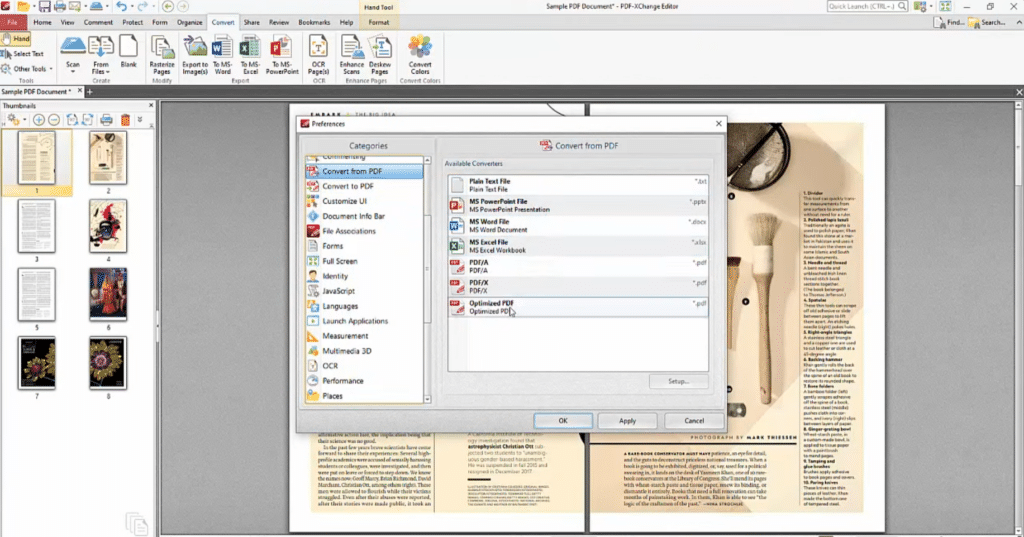
PDF-XChange Viewer is primarily designed to open and read PDF files, but it can do more than that. You can highlight text, insert notes, type directly on top of documents, fill forms, and work with multiple PDF files at once.
That makes the program suitable for everything from manuals and reports to contracts, school assignments, scanned documents, and internal attachments. Many people today use their browser or Adobe Acrobat Reader for PDFs, but PDF-XChange Viewer still feels more responsive and less heavy, especially when you just want to open, read, and annotate a document quickly.
The annotation tools are especially worth highlighting. It’s easy to mark text, drop a margin note, or use the Typewriter tool to type on PDFs that weren’t originally built as interactive forms.
PDF-XChange Viewer download for Windows
PDF-XChange Viewer is Windows-only. The developer’s discontinued page lists support from Windows XP and newer, which is one reason the program can still be interesting on older PCs.
There’s no official version for Mac, Linux, Android, or iPhone. If you’re on a Mac or mobile device, you’ll need to choose a different PDF app.
For brand-new users, PDF-XChange Editor is generally recommended instead. It’s the newer version from the same developer and continues to receive updates. According to the developer, PDF-XChange Editor can create, view, edit, annotate, run OCR, and sign PDF files.
Free PDF reader with comments and OCR
One of PDF-XChange Viewer’s strengths is that many features that once felt “professional” are packed into a small, fast program.
You get:
Text highlighting
Comments and notes
Tabs for multiple open PDFs
Snapshot tool to clip parts of a page
Form filling
OCR for text recognition
Stamps and simple drawing tools
Option to extract images or copy text
The OCR feature isn’t on par with newer PDF software, but it’s still useful for simple scans. With very poor scans, old letters, or skewed documents, don’t expect miracles.
The interface is old-school — but effective

The first thing you notice is the look. PDF-XChange Viewer resembles software from another era — and that’s not necessarily a bad thing. The icons, menus, and toolbars are densely packed, and new users may need a minute to find their way around.
On the other hand, the program is fast. Very fast.
We found that typical PDFs opened almost instantly, and it was easy to jump between documents via tabs. This is where PDF-XChange Viewer still has its place: it feels like a work tool, not a modern app constantly trying to sell you something extra.
Security and privacy
PDF-XChange Viewer runs locally on your computer. That means your documents aren’t automatically sent to a cloud service, and the program works without an internet connection.
That’s an advantage if you work with sensitive documents, older archives, or internal files that shouldn’t be uploaded to online PDF tools. On the flip side, remember the program is discontinued. You should download it from the developer’s official site — not from random download portals.
PDF-XChange Viewer or PDF-XChange Editor?
For most new users, PDF-XChange Editor is the better pick. It’s newer, still updated, and offers more features for true PDF editing. The developer also notes that more than 70% of PDF-XChange Editor’s features work without a license, while the remaining tools add watermarks if used without a paid license.
PDF-XChange Viewer still makes sense in a few situations:
You have an older Windows PC
You want a very fast PDF reader
You mainly need to read and annotate PDFs
You prefer the classic interface
You want to avoid heavy, bloated software
If, on the other hand, you want to edit text directly in PDFs, convert documents, create forms, or work more professionally with PDFs, choose PDF-XChange Editor instead.
Top five tips for PDF-XChange Viewer
Use the Typewriter tool for forms
Many PDFs look like forms but aren’t true interactive documents. The Typewriter tool is handy because you can click directly on the page and type on top of the PDF.
Open multiple PDFs in tabs
PDF-XChange Viewer is still strong when you work with several documents at once. Tabs make it easy to switch between contracts, manuals, attachments, or reports without drowning in windows.
Use Snapshot Tool for quick clips
The Snapshot Tool is great when you only need a specific section from a PDF. It could be a table, a receipt, a chart, or a small part of a manual you want to copy quickly.
Clean up the toolbar
The interface can feel busy, especially the first time you open the program. Remove tools you don’t use and keep highlighting, comments, Typewriter, and Snapshot ready at the top.
Use Viewer for reading and Editor for editing
PDF-XChange Viewer is best for fast reading, forms, and comments. If you need to edit text directly in PDFs or use newer features, PDF-XChange Editor is the better choice.