
 Martin Jørgensen
Plex Media Server: Your personal home streaming service.
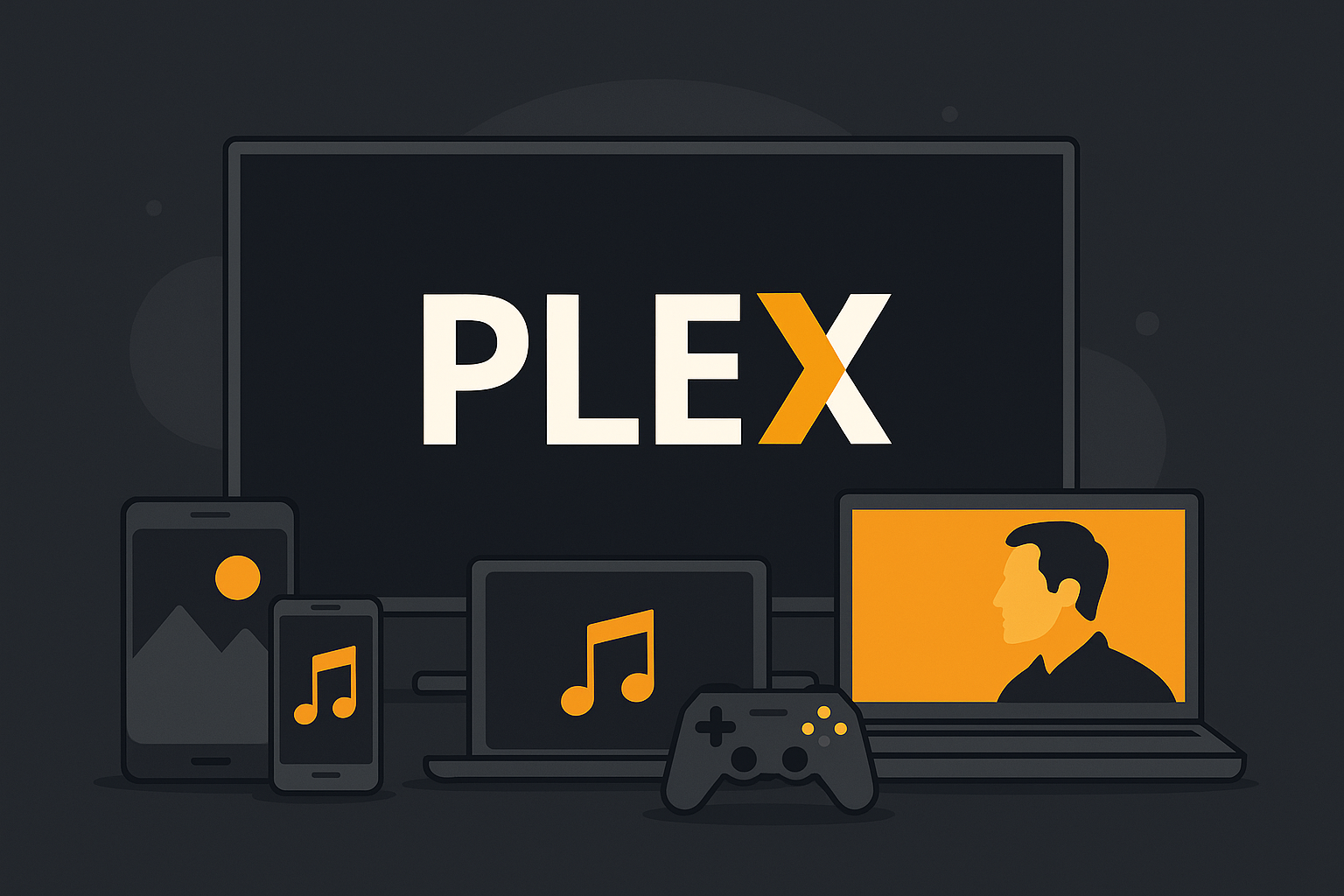
Plex Media Server is a free, powerful media server that lets you organize and stream your own media—movies, TV shows, music, photos, and much more—to all your devices. It works like a private Netflix where you choose the content.
Features and setup
When you install Plex Media Server, it opens in your browser. Here, you create an account and add your media using library categories like movies, TV shows, home videos, photos, and music.
Plex supports metadata fetching, so your files automatically get posters, summaries, and cast info. That gives it a professional look and makes navigation easy.
You can also install extra channels and plugins like YouTube, Vimeo, Soundcloud, Apple Movie Trailers, and older unofficial plugins such as DR TV and SVT Play. Note that channel support has been reduced over time, and official plugins are no longer the primary focus—the emphasis is now on your own media and using third-party apps.
Stream everything to all your devices
Plex can stream to:
- Smart TVs (Samsung, LG, Android TV)
- Mobile and tablet (Android, iOS)
- Media devices (Apple TV, Chromecast, Roku)
- Game consoles (PlayStation, Xbox)
- Computers (via browser or the Plex app)
It only takes installing the Plex app on each device you want to stream to. Once that’s done, you can enjoy smooth HD streaming with synkroniserede subtitles and user-friendly menus.
Benefits for the whole family
Plex supports multiple users, parental controls, and access restrictions. You can also sync content for offline use (requires Plex Pass) or share your library with family and friends over the internet.
Who is Plex Media Server for?
Plex er ideel for you if you have a large collection of your own media and want an elegant, centralized platform to stream it from. It’s a fantastisk løsning for både tech-entusiaster and everyday users, and it works great as an alternative to streaming services like Netflix—just with your own files.
Top 5 tips for Plex Media Server
1. Organize your files correctly
For Plex to fetch metadata automatically (e.g., posters, summaries, and cast info), your files must be named correctly and organized in folders like:
Movies/Movie Name (Year)/Movie Name (Year).mp4Shows/Show Name/Season 01/Show Name - S01E01.mp4
This ensures everything looks neat and correct in the interface—just like on Netflix.
2. Enable remote access to your library
Want to access your media even when you’re away from home? Enable Remote Access in the settings. Then you can stream your files from another city, a vacation home, or abroad.
Tip: This typically requires opening a port (32400) on your router.
3. Add subtitles automatically
Plex can fetch subtitles automatically via services like OpenSubtitles.org. Go to Settings > Agents > Movies/Shows > Plex Movie and enable OpenSubtitles. Just create a free account and sign in.
4. Share your library with family and friends
Invite others to access your library using Friends & Sharing. You can choose which libraries they’re allowed to see—for example, only “Kids Movies” or “Music”.
A smart feature if you want to share movies with others without giving access to your entire server.
5. Install the Plex app on all your devices
Get the full experience by installing the Plex app on TVs, phones, tablets, and consoles. It delivers a consistent user experience and supports features like playback position, subtitles, and playlists.



