 Martin Jørgensen
Sejda PDF makes PDF editing fast, simple, and surprisingly powerful
Sejda PDF is a tool for anyone who wants to edit, merge, compress, sign, and convert PDF files without installing a heavy office suite or paying for Adobe Acrobat.
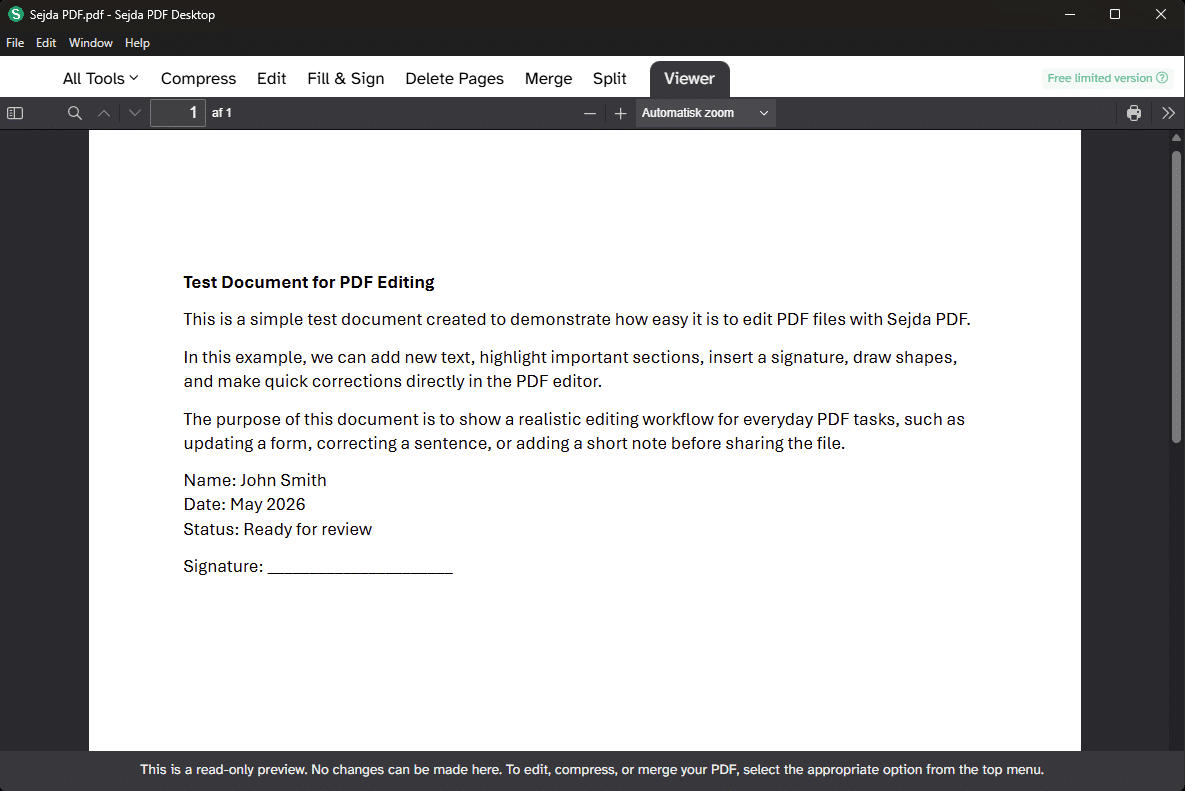
We tested Sejda PDF on a Windows 11 PC with a mix of everyday PDFs, scanned documents, and forms. The first thing that stands out is how straightforward it feels. You pick a task, upload or open your PDF, make the change, and download the file again. There aren’t many menus, pop-ups, or distracting features, which makes Sejda one of the PDF tools we got up and running with the fastest.
Sejda is available both as an online PDF editor and as a desktop app. The online version runs right in your browser, while Sejda Desktop processes documents locally on your computer, which is especially relevant if you work with more sensitive files. According to Sejda, desktop files are handled locally, while online files are uploaded to their servers, and files in the web version are deleted automatically after 2 hours.
Online PDF editor without the hassle
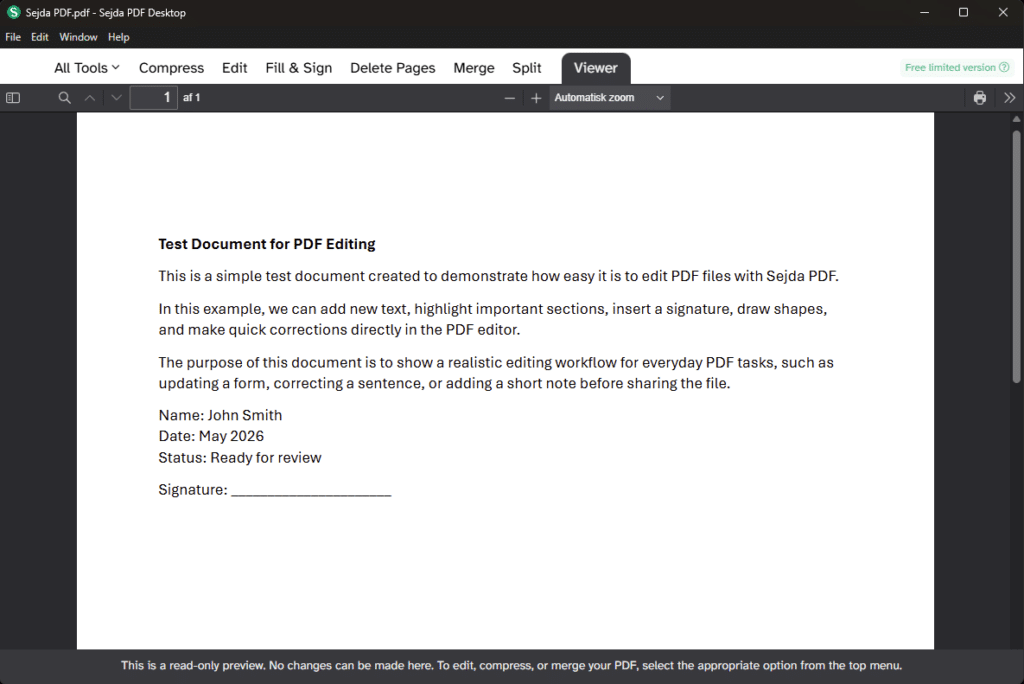
Sejda PDF really shines when you just need to make a quick change to a PDF. It could be an invoice, a form, a résumé, supporting documents for your bank, or a contract where you need to insert text, highlight something, add a signature, or remove a page.
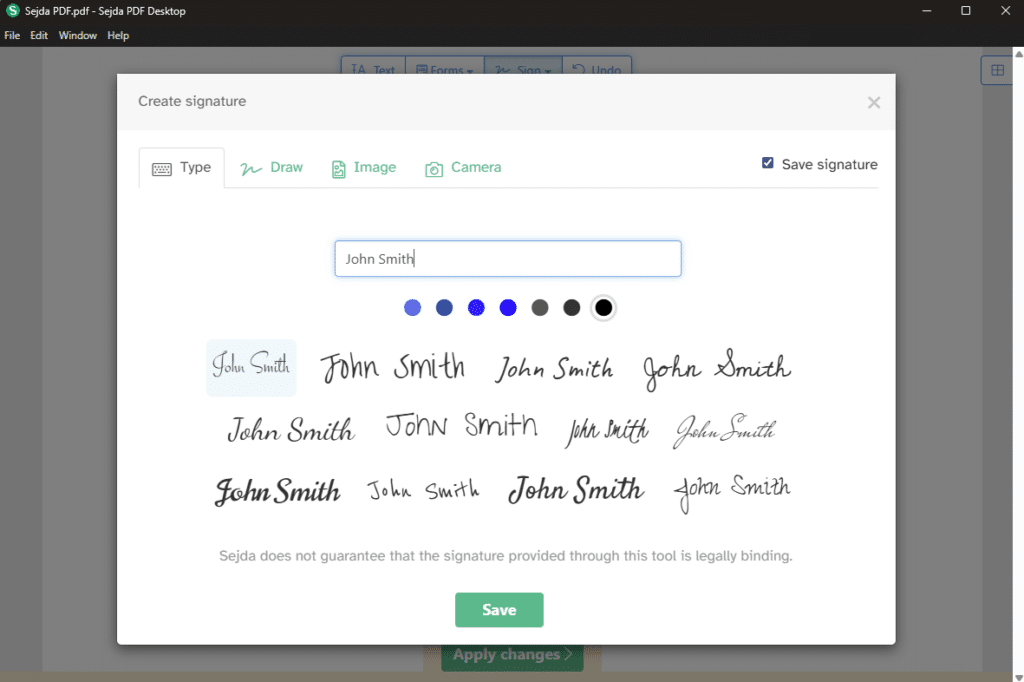
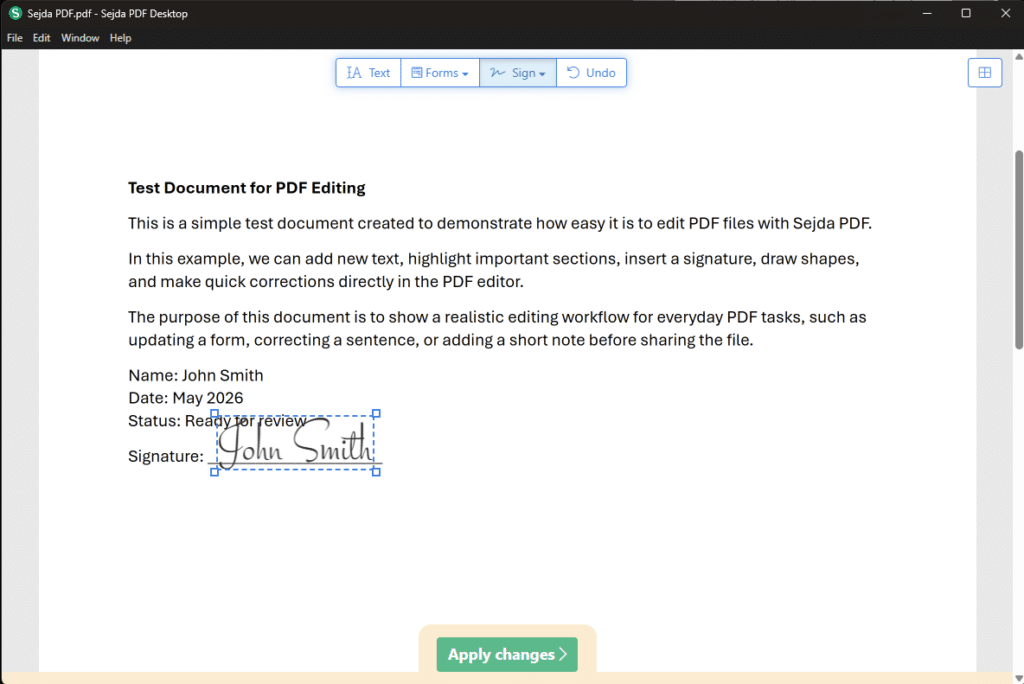
In our test, it was easy to add text fields, move elements around, and insert a simple signature. The interface feels more like a practical online tool than a classic office suite, which is actually an advantage. You’re not hit with 200 features at once.
It’s worth noting that PDF editing is never truly magical. If the PDF was originally created as an image or a scan, text editing can be trickier. Sejda can help with OCR and text recognition, but the result depends a lot on the quality of the original file.
What can you do with Sejda PDF?
Sejda PDF isn’t just a single PDF editor. It’s more like a collection of small PDF tools, each solving a specific task. That makes it especially useful if you often end up searching for different PDF solutions for simple jobs.
You can use Sejda PDF to:
✅ Edit text in PDF files
✅ Fill out and sign PDF documents
✅ Combine multiple PDFs into a single file
✅ Split PDFs into smaller documents
✅ Compress PDFs so they take up less space
✅ Convert PDFs to Word, Excel, text, or images
✅ Add watermarks, page numbers, headers and footers
✅ Password-protect PDFs
✅ Edit PDF metadata
✅ Turn scanned documents into searchable text
The official toolset is quite extensive and includes PDF Editor, OCR, PDF to Word, PDF to Excel, compression, watermarks, PDF repair, and workflows to chain multiple tasks together.
Free PDF editor — but with limits
Sejda PDF can be used for free, but the free version has clear limits. In the web version, Sejda states a cap of documents up to 200 pages or 50 MB and 3 tasks per hour. For compression, the size limit may be higher, but usage is still limited.
That’s perfectly reasonable for personal use. If you need to fix a single PDF, merge a couple of documents, or sign a form, the free version is often enough. But if you work with PDFs every day, you’ll hit the ceiling quickly.
This is also where Sejda stands out from many “free” PDF tools: it doesn’t plaster intrusive watermarks on your files like some competitors, and you’re not forced through a bunch of ad-like steps. In return, you do have to accept usage limits.
Sejda Desktop or Sejda online?
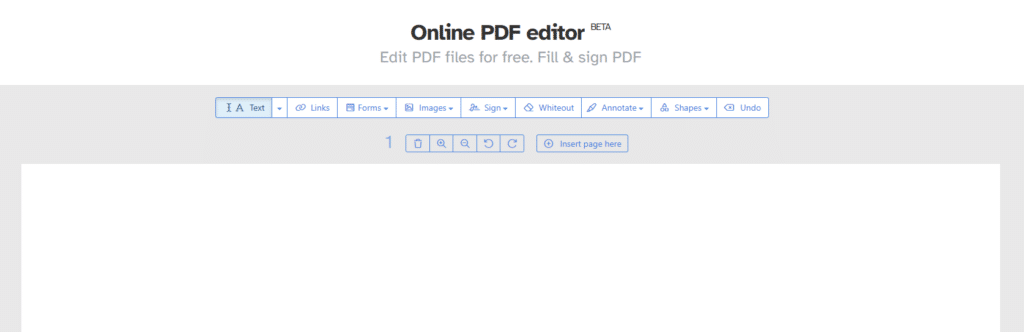
The online version is best when you have a quick PDF task and don’t want to install anything. It works well for simple edits, forms, compression, and conversion.
Sejda Desktop is better if you often work with documents that shouldn’t be uploaded to a web service. That could be contracts, internal records, financial files, or personal documents. The desktop version is available for Windows, Mac, and Linux, and the official Sejda Desktop page highlights the difference as local processing on your computer instead of uploading to servers.
For most US users, our recommendation is simple: use the online version for quick, non-sensitive tasks. Use the desktop app if the PDF contains anything private, financial, or sensitive.
How Sejda PDF performed in our testing
In our test, we used Sejda for three common tasks: edit text in a PDF, compress a large file, and merge several PDFs into one file. All three tools were easy to find, and everything felt snappy.
The best thing about Sejda is that you don’t have to learn the program first. When you click “Edit PDF,” “Compress PDF,” or “Merge PDF,” you’re already almost done. It sounds basic, but this is where many PDF programs stumble: they try to act like full-blown document suites, even when you just want to move one line of text or delete a blank page.
We did notice that text editing can vary. In some PDFs, we could edit text very naturally. In others, the layout was more fragile—especially if the file used special fonts or was generated by an older system. That’s not unique to Sejda, but it’s worth mentioning.
Is Sejda PDF safe?
Sejda feels like a more serious choice than many random PDF sites, but security depends on how you use it.
For everyday documents, the web version is convenient. Sejda states that files in the web version are automatically deleted after 2 hours, and that the free version can be used without installation.
For sensitive files, choose Sejda Desktop. Here, documents are processed locally on your own computer, which is more reassuring than uploading them to an online PDF editor.
We personally wouldn’t use the web version for Social Security numbers, confidential contracts, or private health records. For that, the desktop edition makes far more sense.
Best alternatives to Sejda PDF
Sejda PDF is strong, but it’s not the only good PDF tool.
Adobe Acrobat is still the most complete choice for professional PDF work, but it’s also pricier and heavier. PDF24 Creator is a solid free alternative for Windows users, especially for compressing, merging, and converting. Smallpdf and iLovePDF are more like Sejda as browser-based tools, but they have their own limits too.
Sejda feels most relevant if you want a middle ground: more user-friendly than classic desktop programs, lighter than Adobe, and more reliable than many random free PDF sites.
Top 5 tips for Sejda PDF
1Use Desktop for private documents
SecurityIf the PDF contains personal details, contracts, or financial records, use Sejda Desktop instead of the web version so the file is processed locally on your computer.
2Compress before sending large PDFs
File sizeSejda’s compression tool is handy when a PDF is too large for email, upload forms, or government portals. Always check the quality afterward.
3Save a copy before major edits
WorkflowPDFs can behave differently depending on fonts, layout, and how the file was made. Save the original before editing text, deleting pages, or reordering.
4Use OCR for scanned documents
Text recognitionIf you have a scan where the text can’t be selected, OCR can make the document searchable. Results are best when the scan is sharp and straight.
5Bundle small PDF tasks into workflows
EfficiencyIf you repeat the same document routines, Sejda’s workflow feature can save time—especially when you need to compress, merge, and modify PDFs in one go.
When a PDF just needs a quick fix
Sejda PDF is one of the most user-friendly PDF tools we’ve tested for everyday tasks. It’s not the most advanced solution for professional graphic workflows, and the free tier’s limits can be annoying if you process many documents. But for fast PDF editing, signing, merging, compressing, and converting, it’s genuinely strong.
The best part is that Sejda doesn’t try to make PDF work more complicated than it needs to be. You choose the task, make the change, and download the file. For many users, that’s exactly what’s been missing.