
 Martin Jørgensen
Stellar Data Recovery – Recover deleted files safely and effectively
Stellar Data Recovery is one of the most trusted data recovery tools for both Windows and Mac. The software helps you restore lost files, folders, documents, photos, videos, and even entire partitions—whether you deleted something by mistake, formatted a drive, or experienced a hard drive failure. It’s suitable for both home users and professionals.
Advanced file recovery in a few clicks
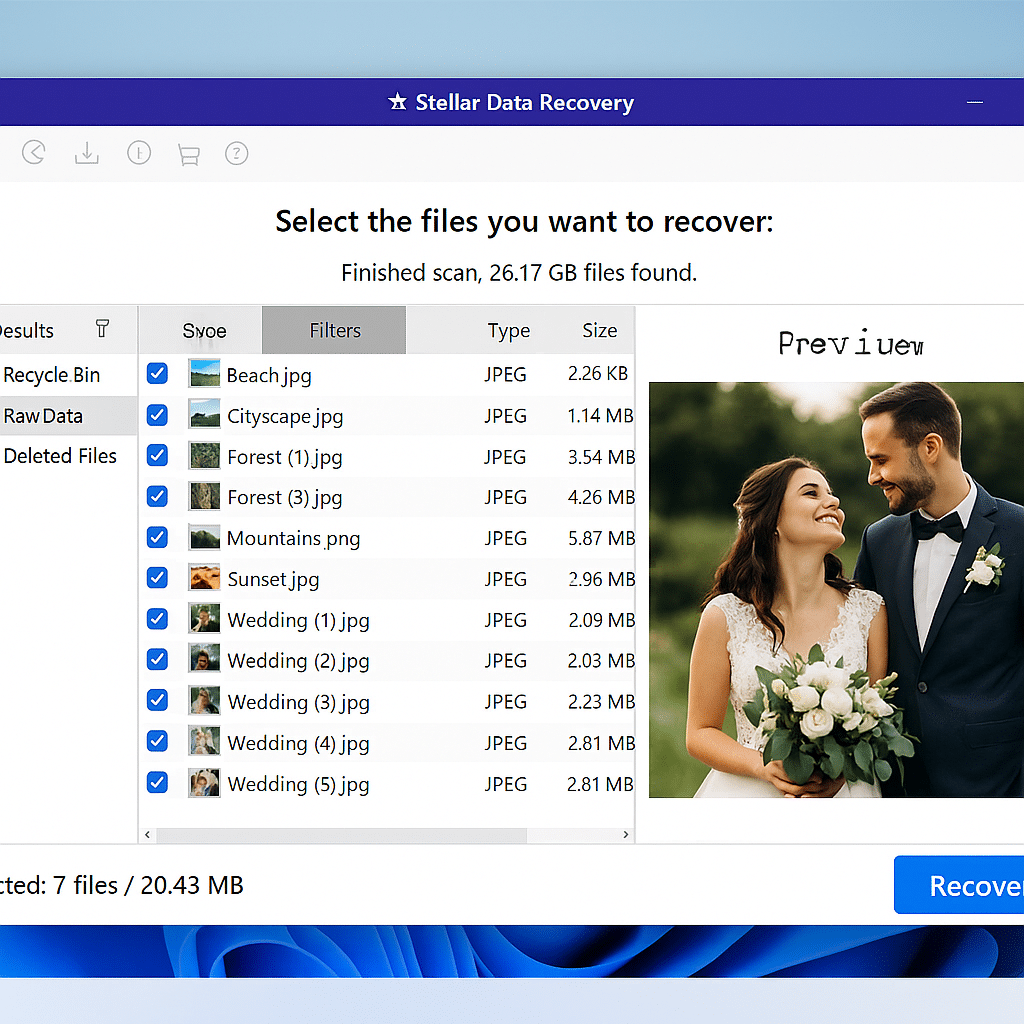
Stellar Data Recovery stands out by recovering data from drives with severe file system errors, such as RAW drives where Windows reports that the disk must be formatted before use. In these cases, Stellar can read at the sector level and reconstruct file structures based on known file signatures and metadata.
The software offers specialized recovery modules depending on the edition—for example, Video Repair, Photo Recovery, and Email Recovery for Outlook and other clients. In the advanced editions, you also get RAID recovery, restoration of lost partitions, and the option to clone failing disks for safe analysis and recovery without further risk of data loss.
Stellar Data Recovery also supports recovery from encrypted drives (e.g., BitLocker), provided you have the required key. The program can automatically detect deleted or hidden volumes and lets you include them in the scan with a single click.
All of this makes the program ideal for both home users looking to rescue vacation photos and professional technicians handling complex data loss scenarios in businesses. The recovery process is designed to be safe—Stellar never writes to the source drive during scanning, minimizing the risk of further damage.
Ease of use and interface
Stellar Data Recovery is built to be user-friendly—both visually and functionally. The flat menu structure and minimalist design mean even non-technical users can quickly find their way and understand the next steps. The program remembers your previous choices, so if you need to scan the same drive types or file types again, you don’t have to repeat the entire setup.
During scanning, the status updates in real time with an estimated time and the number of files found. You can pause and resume the scan at any time, which is helpful for large drives or when working on a laptop with limited battery.
Another powerful feature is the ability to save scan sessions. This means you can stop mid-process and resume from the exact same point later—without restarting the scan. It’s especially useful for deep analyses with many gigabytes of data.
The program also supports previewing many different file types, including .pdf, .docx, .xlsx, .jpg, .mp4, and .zip, directly in the interface. If you have lots of files with cryptic file names (which often happens after data loss), this makes it much easier to identify the right items.
For professional users, Stellar provides a detailed log of each scan and recovery, which can be exported for documentation or further analysis. Overall, the interface strikes a balance between simplicity and advanced options—wrapped in a modern, responsive design that feels at home on both Windows and macOS.
Top 5 tips for Stellar Data Recovery
Start with Quick Scan — but be ready to use Deep Scan
Use Quick Scan first for fast results. If you can’t find your files, switch to Deep Scan—especially after formatting or severe data loss.
Filter your results right away
After a scan, filter by documents, photos, videos, or date. It saves time and makes it easier to find exactly what you need.
Use preview before you recover
You can preview most files before recovering them. It helps you choose the right ones and avoid wasting space on unusable files.
Never save recovered files to the same drive
If you recover to the original drive, you risk overwriting files that haven’t been recovered yet. Use another disk or a USB drive.
Save scan sessions and resume later
You don’t have to do everything at once. Save the scan results and pick up later without starting over.



