
 Martin Jørgensen
Virtual Magnifying Glass – free screen magnifier for Windows
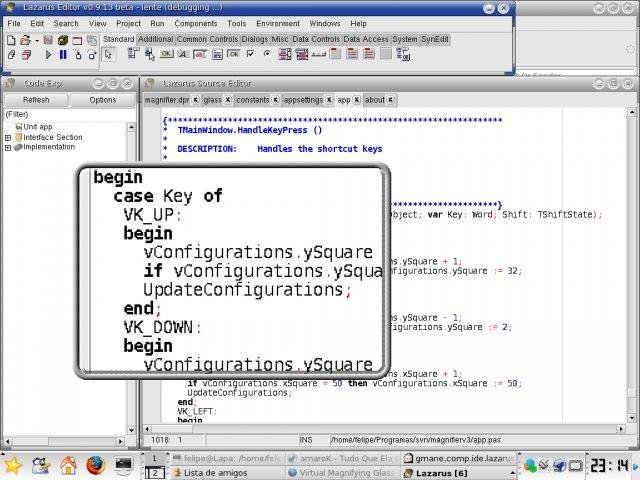
Virtual Magnifying Glass is a simple, open-source tool that acts as a virtual magnifier on your Windows PC. We tested it on a standard Windows 11 machine where installation was quick, but dialing in the right zoom level and lens size took a couple of minutes.
It’s especially useful when you need to enlarge small on‑screen elements—like in older apps, technical drawings, or when helping someone with low vision.
Features and usability
1 has two main modes:
• Classic Mode — the virtual lens follows your mouse. You can choose both size and zoom level.
• Dynamic Mode — the lens stays fixed on the screen and is moved with the keyboard.
In our testing, Dynamic Mode worked best, mainly because the mouse cursor occasionally became invisible in Classic Mode. That makes precision work a bit frustrating, but for everyday magnification the program does the job.
The software also offers:
• Adjustable zoom (from low to extreme magnification)
• Option to change the lens shape and size
• Customizable hotkeys
• Support for Windows, Linux, and macOS
Interface and design
The design is very simple—almost old‑school. But that’s exactly where the program shows its strength: no clutter, no ads, no pop‑ups. Everything is focused on magnifying the screen as quickly as possible. The interface is easy to understand, though a few settings may take some experimenting.
Challenges and controls
During testing, we ran into:
• Missing cursor in Classic Mode
• Slight stuttering at very high zoom levels
• A limited, non‑modern UI
On the plus side, the app is lightweight and fast—and it barely uses system resources.
Strengths and weaknesses
Virtual Magnifying Glass does what it promises. It’s not the most modern app, but it’s fast, free, open‑source, and works well for basic magnification. For advanced screen magnification, there are more capable professional tools—but for everyday use, this is a handy utility.
Top 5 tips for Virtual Magnifying Glass
Adjust the zoom level before use
The app often opens with a lower zoom level than expected—raise it if you need to work with fine details.
Use Dynamic Mode for precision work
Classic Mode can be imprecise, especially when the mouse becomes invisible.
Customize keyboard shortcuts
This makes it much faster to toggle the magnifier and move the lens.
Try different lens sizes
A larger lens is great for text; a smaller one is better for graphics and images.
Experiment with shapes
Round vs. rectangular lenses change how much of the screen you see at once.



