
 Martin Jørgensen
VMware Workstation – run multiple operating systems on a single PC
VMware Workstation is a professional virtualization application that makes it possible to run multiple operating systems simultaneously on one computer. With the software, you can, for example, run Linux or an extra Windows installation in a virtual machine without restarting your PC or changing your existing setup.
The program is used primarily by developers, IT professionals, and power users, but it’s also relevant for everyday Windows users who want to test software, work in secure, isolated environments, or get to know Linux. VMware Workstation is known for high stability, strong hardware support, and a polished user experience—and today, it’s far more accessible than it used to be.
Features and capabilities
With VMware Workstation, you can create virtual machines (VMs) where each operating system runs in its own isolated environment. That means you can have Windows 11, Ubuntu Linux, and even an older version of Windows running side by side. The program supports:
- Virtual hard disks up to 8 TB
- USB 3.0 support
- HD audio and advanced graphics acceleration
- Snapshot functionality, so you can quickly restore a system to a previous state
The software is particularly popular among developers, testers, and IT pros because it saves time and makes it possible to simulate complex network environments.
User experience and interface
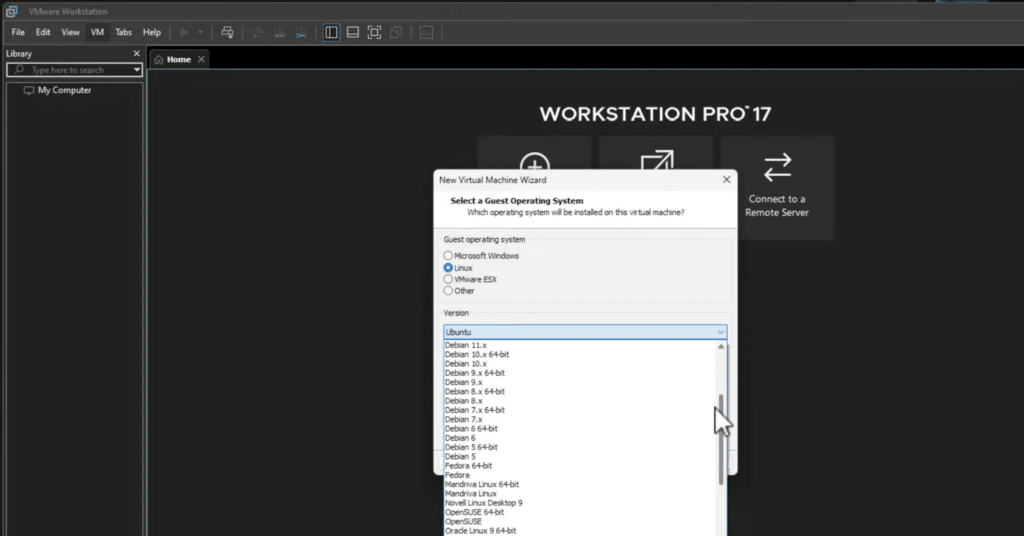
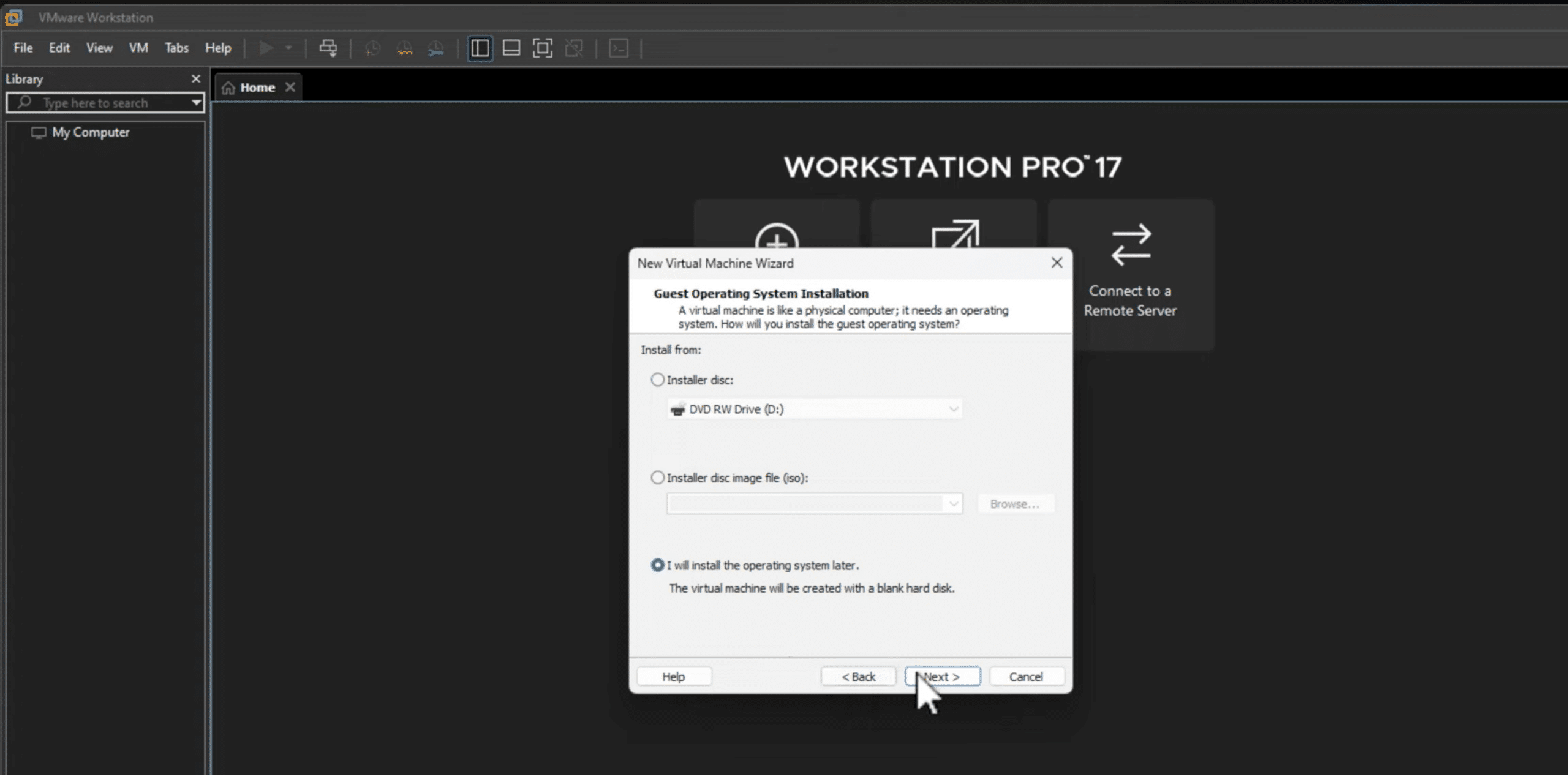
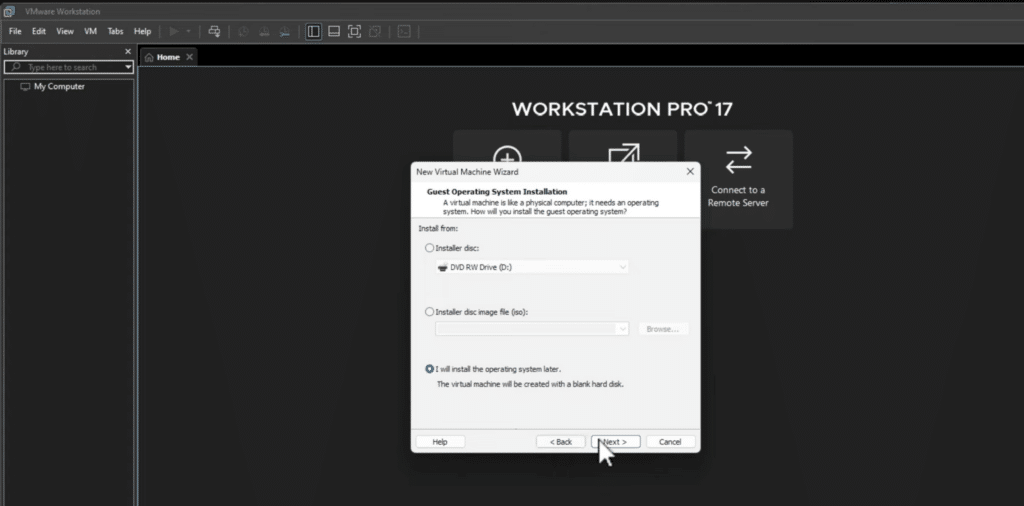
VMware Workstation is designed to be user-friendly despite its advanced functionality. Installing a new operating system happens step by step through a guided wizard that keeps the process simple—even for users without deep technical knowledge.
Pricing and licensing
VMware Workstation used to be a relatively expensive tool aimed primarily at businesses and professional users. That has changed dramatically.
VMware Workstation Pro can now be downloaded and used for free via VMware by Broadcom’s official portal. This applies to personal use, education, and commercial purposes. You get access to all Pro features without purchasing a license or entering a product key.
In practice, that means VMware Workstation has gone from a premium product to one of the most complete free virtualization tools on Windows. Compared to free alternatives like VirtualBox, VMware typically offers better performance, more stability, and more advanced features—especially when you work with multiple virtual machines or demanding operating systems such as Windows 11.
VMware Workstation Pro, Player, and other editions – which should you choose?
When you search for VMware Workstation, you’ll often see different names such as Workstation Pro and Workstation Player. That can be confusing, especially if you’ve used VMware in the past.
Today, VMware Workstation Pro is the primary and recommended version. It’s the full edition with access to all features, including snapshots, advanced networking, cloning virtual machines, and support for demanding operating systems like Windows 11.
VMware Workstation Player was previously offered as a free, more limited version. Player is no longer the focus, and new users should instead download and use Workstation Pro, which can now be used for free and offers far more capabilities.
In short:
- If you want to run virtual machines seriously or professionally, VMware Workstation Pro is the right choice
- There’s no real reason to choose Player today, since the Pro version is available without licensing costs
For most users, that means you can simply download VMware Workstation Pro and ignore older guides and pages that still point to Player or separate license keys.
Download and installation – getting started
To download VMware Workstation, use VMware/Broadcom’s official download page. There you’ll always find the latest version of VMware Workstation Pro for Windows.
Once you’ve downloaded the installer, the setup itself is straightforward and typically takes just a few minutes:
- Launch the installer and follow the on-screen wizard
- Accept the license terms and choose the default settings (they work for most users)
- Finish the installation and restart your computer if prompted
- Open VMware Workstation and choose “Create a New Virtual Machine”
The program will then guide you step by step through setting up your first virtual machine. Simply choose which operating system you want to install—Windows or Linux—and point to the installation media (ISO file).
We tested the installation on a typical Windows 11 PC, and the entire process from download to your first virtual machine took under 15 minutes. The New VM wizard makes it easy to get started, even if you haven’t worked with virtualization before.
Top 5 tips for VMware Workstation
Use snapshots effectively
Save the system state before installing new software so you can quickly roll back without losing data.
Share folders between the host and guest
Enable shared folders for easy file exchange between your operating systems and save time in your workflow.
Optimize performance
Allocate the right amount of RAM and CPU cores to each virtual machine to avoid lag and system crashes.
Get Windows 11 to install without errors
Make sure the VM uses UEFI, Secure Boot, and a virtual TPM from the start—otherwise the Windows 11 installation often fails mid-way.
Use Unity Mode
Run applications from your virtual machine directly on your host desktop for a more seamless experience.
Export and import VMs
Back up or move your virtual machines to another computer with ease by exporting and importing them.
VMware Workstation vs VirtualBox – what’s the difference?
VMware Workstation and VirtualBox are both used to run virtual machines on Windows, but they don’t target exactly the same type of user.
VMware Workstation is generally known for higher stability and better performance, especially when you’re running multiple virtual machines at once or demanding operating systems like Windows 11. It handles snapshots, networking, and hardware acceleration more smoothly, and the user experience feels more polished—particularly in professional workflows.
VirtualBox is a popular free alternative that works fine for simple tasks and light testing. It’s often sufficient if you just want to try Linux or run a single virtual machine without special requirements. However, VirtualBox can feel less stable under heavy load, and setting up advanced features typically requires more manual configuration.
Quick overview:
- VMware Workstation is best suited for development, test environments, and professional use
- VirtualBox is great for beginners and simpler scenarios
- Performance, snapshots, and stability are typically stronger in VMware Workstation
Since VMware Workstation can now be used for free, many users choose VMware over VirtualBox—especially if they’ve previously experienced limitations or compatibility issues in VirtualBox.
Hardware requirements and Windows 11 in virtual machines
VMware Workstation has relatively modest requirements, but to get a stable and fast experience—especially with Windows 11 in a virtual machine—there are a few things to keep in mind.
First, your processor must support hardware virtualization (Intel VT-x or AMD-V). This is usually enabled by default on newer computers, but in some cases you may need to turn it on manually in the BIOS or UEFI.
Additionally, we recommend:
- At least 8 GB of RAM (16 GB delivers a noticeably better experience when running multiple virtual machines)
- A modern multi-core CPU
- SSD storage, especially if you run Windows 10 or Windows 11 in a VM
Windows 11 in VMware Workstation – TPM and Secure Boot
Windows 11 has stricter requirements than earlier Windows versions, even when the system runs as a virtual machine. VMware Workstation supports these requirements, but they need to be configured correctly.
When you create a virtual machine for Windows 11, you should:
- Choose UEFI instead of legacy BIOS
- Enable Secure Boot
- Add a virtual TPM (Trusted Platform Module)
VMware Workstation guides you through most of this, but if any of these settings are missing, the Windows 11 installation will typically be rejected. In our testing, Windows 11 worked without issues as long as TPM and Secure Boot were enabled from the start.
It’s also worth noting that certain performance or boot issues can be caused by conflicts with Hyper-V or Windows’ own virtualization features. If virtual machines feel slow, it can help to check that Hyper-V isn’t enabled at the same time.
Frequently asked questions about VMware Workstation
Is VMware Workstation free?
Yes, VMware Workstation Pro can now be used for free via VMware by Broadcom’s official download portal. This applies to both personal and commercial use, and no license key is required.
Does VMware Workstation work on Windows 11?
Yes, the program works well on Windows 11. It’s also possible to install Windows 11 as a virtual machine, as long as requirements like TPM and Secure Boot are enabled.
What’s the difference between VMware Workstation Pro and Player?
Workstation Pro is the full version with all features, including snapshots and advanced networking. Player is no longer relevant for new users, since the Pro version can now be used for free.
Can I run Linux and Windows at the same time?
Yes, VMware Workstation lets you run multiple operating systems simultaneously. For example, you can have Windows as your main system and run Linux in a virtual machine alongside it.
How much RAM does VMware Workstation require?
At least 8 GB of RAM is recommended, but 16 GB or more provides a much better experience—especially if you work with multiple virtual machines at once.



