Martin Jørgensen
Windows in 2026 – which operating system suits you best?
Microsoft’s Windows ecosystem is at an important crossroads. Many users still run Windows 10, while Windows 11 now ships on most new PCs. But which version actually fits best in 2026? And what’s the difference between the Home and Pro editions that many overlook when buying a new computer?
Windows 10 officially leaves support on October 14, 2025. The OS will still work, but it will no longer receive security updates. That leaves many with a choice: stay put, upgrade — or look at alternatives like Linux.
Windows 10 Home – the classic, stable choice
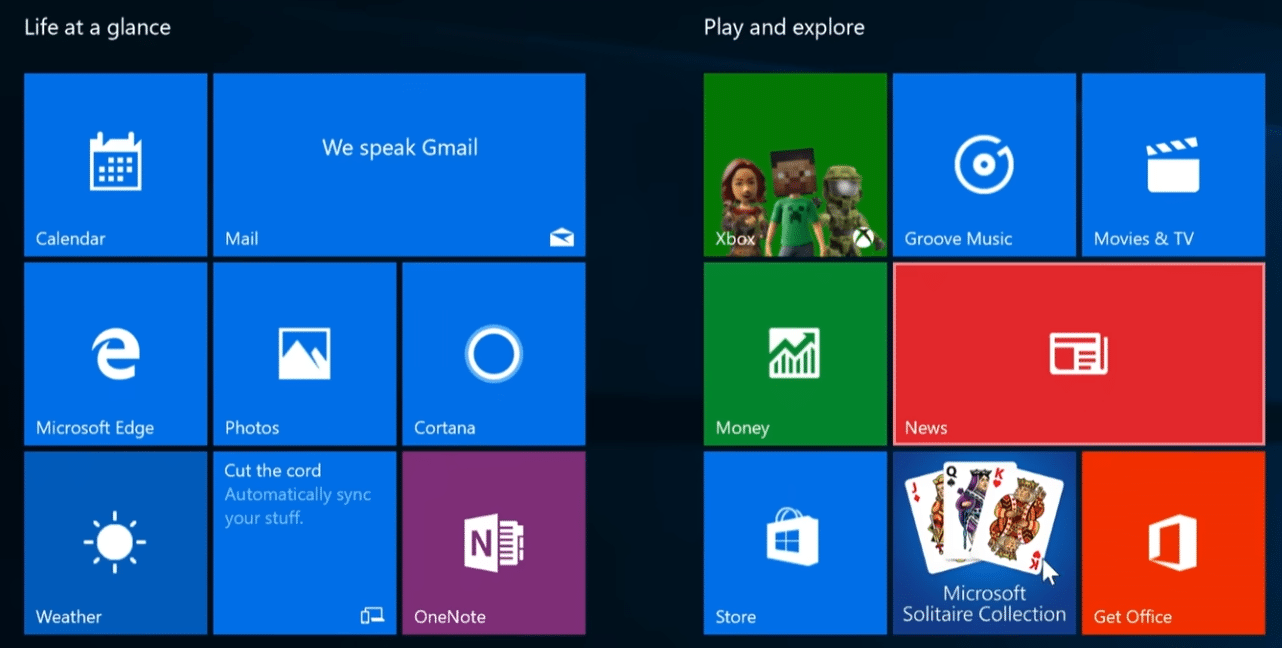
1 is the standard edition that shipped with most PCs since 2015. It’s built for everyday users, families, and students.
The system is stable, supports all common software, and requires minimal setup.
💻 Users: Home users and students
🔐 Security: Windows Defender, Firewall, BitLocker reading (no full-device encryption)
⚙️ Features: Microsoft Store, Cortana, Snap Layouts, Game Bar
📦 Price: Around $150–$180
Windows 10 Home lacks certain capabilities like business management, Remote Desktop, and full-disk encryption. For most households, that won’t matter — Home is still a complete and reliable OS.
Windows 10 Pro – for power users and small businesses
Windows 10 Pro builds on Home and targets professional users, small businesses, and tech enthusiasts.
You get features like:
🔐 BitLocker: full-disk encryption for added security
🖥️ Remote Desktop: access your PC from anywhere
🧰 Hyper-V: run virtual machines
🏢 Domain management: join company networks
Pricing typically lands around $240–$285, and the difference can quickly pay off if you want full control. Many enthusiasts choose Pro just for BitLocker and virtualization.
Windows 11 – the modern successor
Windows 11 launched in 2021 as a visual and technical upgrade to Windows 10.
The interface is more modern, icons are centered, and it runs smoother — especially on newer hardware.
New features include:
- Improved multitasking with Snap Layouts and Snap Groups
- Built-in Microsoft Teams integration
- DirectStorage and Auto HDR for better gaming
- TPM 2.0 and Secure Boot requirements for stronger security
There are still Home and Pro editions, with differences similar to Windows 10 — but Home now requires a Microsoft account during setup, which many find annoying.
💡 Pro: Future-proof, faster, cleaner interface
⚠️ Con: Requires newer hardware and a Microsoft account
Comparison – Windows 10 vs. Windows 11
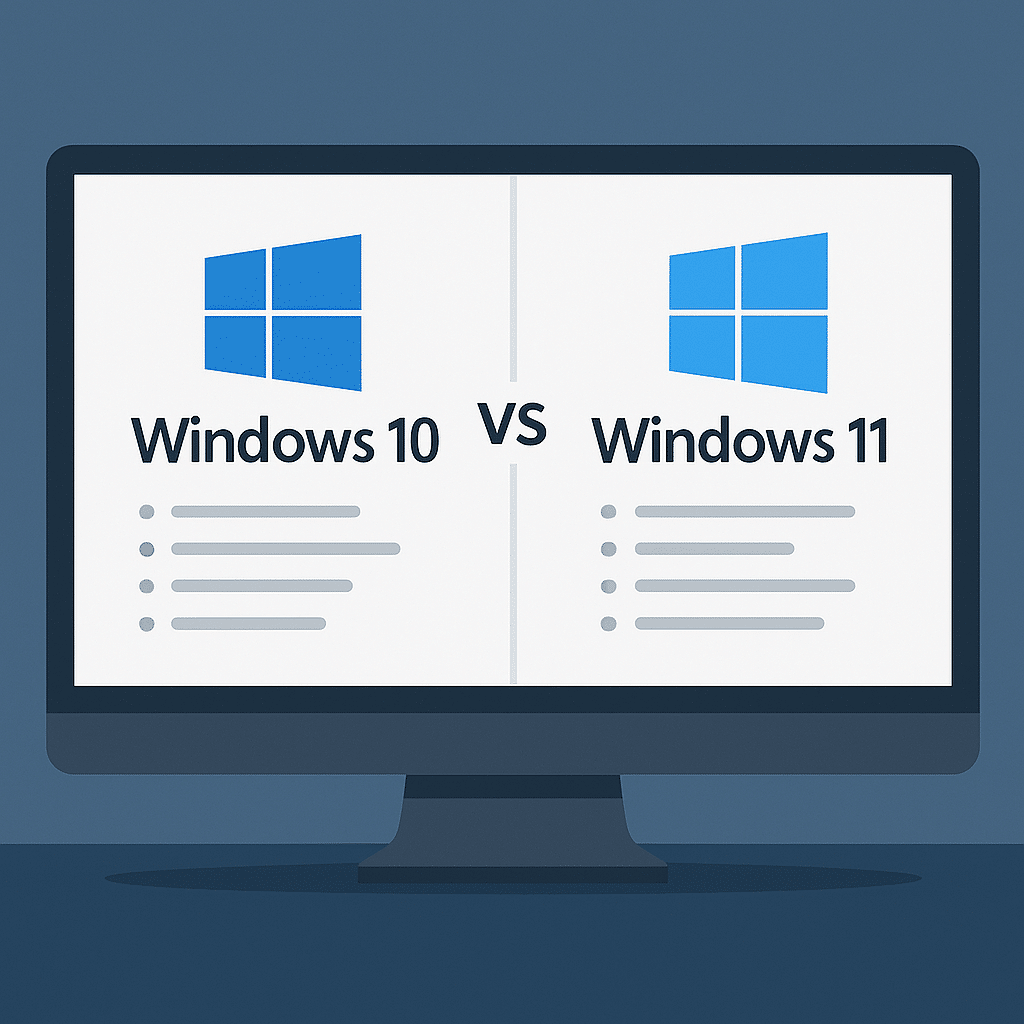
| Feature | Windows 10 | Windows 11 |
|---|---|---|
| Design | Classic, squared | Modern, rounded |
| Requirements | Runs on almost anything | Requires TPM 2.0 and a modern CPU |
| Performance | Stable | Faster on newer machines |
| Widgets | No | Yes |
| Gaming | Good | Better (Auto HDR, DirectStorage) |
| Support | Ends Oct 2025 | Long-term support |
Which version should you choose in 2026?
- 🧩 Older PCs: Stay on Windows 10 Home temporarily — but plan your switch before 2026.
- 💻 New laptops: Choose Windows 11 Home — best for most users.
- 🧠 Power users or businesses: Go with Windows 11 Pro for better security and control.
- 🐧 Tech-savvy users: Consider Linux (e.g., Ubuntu or Mint) as a free alternative — especially for programming or server use.
Alternatives – Linux and macOS
Linux has become far more user‑friendly than it used to be. Ubuntu, Mint, and Fedora offer a free and secure experience with no ads or license fees.
macOS, available only on Apple computers, remains popular with creatives and developers — but it’s tied to Apple hardware and more expensive to buy.
Top 5 tips for choosing a Windows version
1. Check your hardware first
Use Microsoft’s PC Health Check to see if your PC supports Windows 11. Many older machines lack TPM 2.0.
2. Consider your needs
If you never use Remote Desktop or encryption, Home is more than enough.
3. Upgrade early
Don’t wait until Windows 10 support ends. Moving to Windows 11 is smoother if you do it early.
4. Use a local account (if possible)
During Windows 11 Home setup, you can temporarily disconnect from the internet to bypass the Microsoft account requirement.
5. Back up before major changes
Upgrades between versions and operating systems can fail. Always use OneDrive, a USB backup, or an external drive.
FAQ – Frequently asked questions
Why Windows 11 Pro is the most future-proof choice
While Windows 10 still works well, Windows 11 is clearly built for the future — faster, more secure, and better aligned with modern hardware.
For typical users, Home is enough, but Pro delivers peace of mind and extra features that quickly become indispensable.
If you want an operating system that will last for years to come, Windows 11 Pro is the best choice in 2026.