 Martin Jørgensen
Krita has for years been among the most popular open-source tools for digital illustration, concept art, and 2D graphics. The program is free, well-optimized, and delivers a professional drawing experience that rivals pricier alternatives. A major reason for its success is Krita’s flexible brush engine, where artists can add, share, and install a wealth of brush packs.
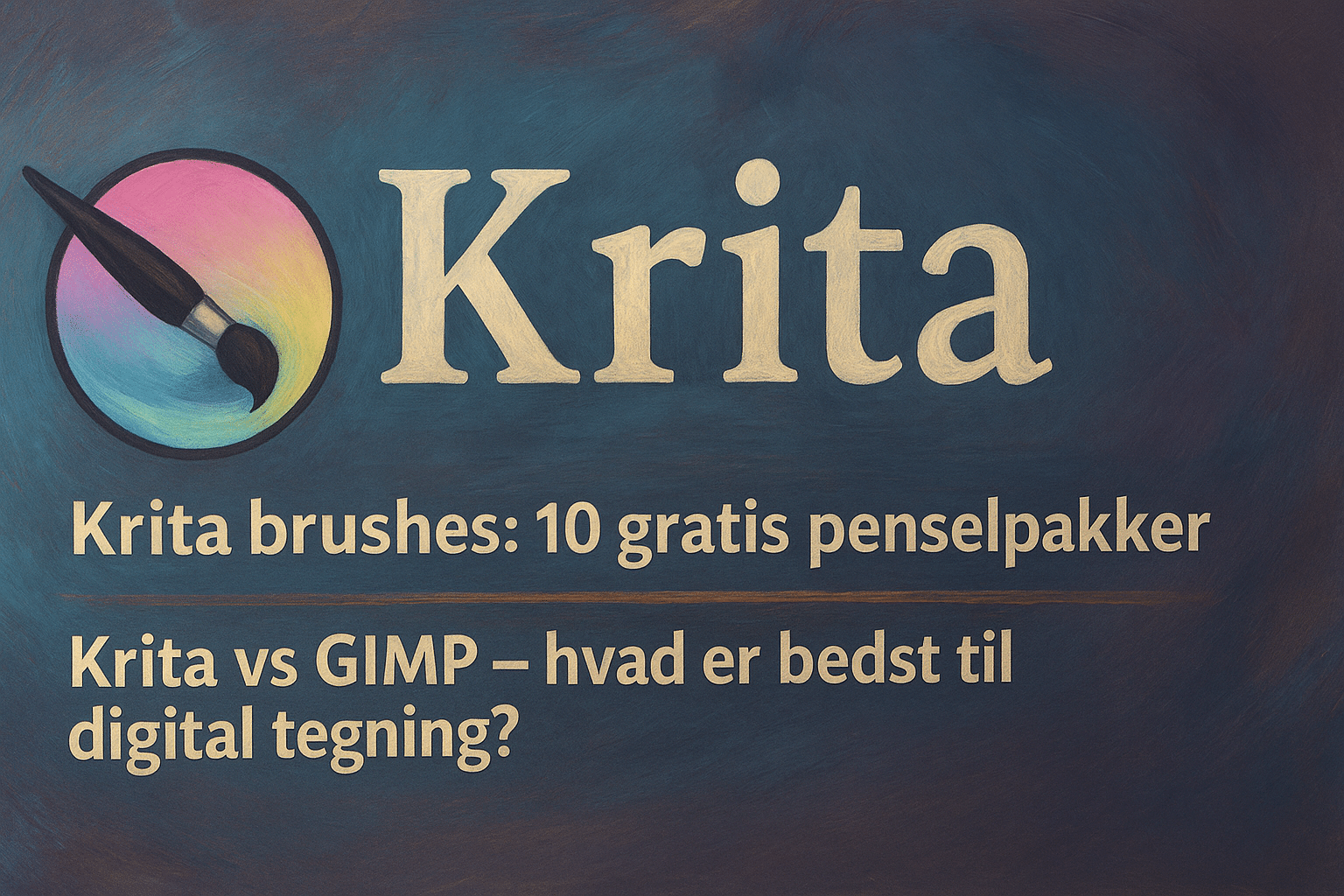
In this article, we dive into two topics many users ask about:
- 1 brushes: The 10 best free brush packs
- Krita vs GIMP: Which program is best for digital drawing?
Our goal is to give you both inspiration and practical help — and build a solid knowledge base if you’re considering Krita for your creative workflow.
Krita brushes: 10 free brush packs you should know
Krita ships with a solid set of default brushes, but the real magic begins when you expand your library. Here are 10 free brush packs frequently recommended by both professional artists and hobbyists.
1. David Revoy’s Brush Set
One of the most popular sets. Focuses on realistic pencils, inking brushes, and texture brushes that work well for both comics and concept art.
2. Radian 1 & 2 Brush Packs
Perfect for soft shading, painterly effects, and natural transitions. Ideal for portraits and digital paintings.
3. Krita Watercolor Pack
An exceptionally well-made pack for watercolor effects — including wet edges, granulation, and layer-based wash brushes.
4. Brush Pack by Vasco Alexander
Brushes tailored for semi-realistic illustration and concept art. Especially strong texture and skin brushes.
5. Jackpack Krita Bundle
A large and versatile pack that gives you many graphic brushes, smoke, sand, dust, and grunge textures.
6. Nylnook Brush Set
Especially good for comics, sketching, and line art. The inking brushes are easy to control.
7. “Charcoal & Dry Media”
For those who love raw, textured strokes. Delivers the feel of traditional charcoal, pastel, and dry brush.
8. Frostgrave FX Brushes
Effect brushes like snow, glow, magic, particles, and fantasy elements. Popular among illustrators and game artists.
9. Manga/Anime Lineart Pack
Built for clean lines, varied pressure, and cel shading. A perfect fit for anime and manga illustrations.
10. Painterly Oil Pack
Simulates oil paint with uneven strokes, thicker paint, and subtle realistic texture.
How to install Krita brushes quickly
Even large packs usually take under a minute to install. The process is simple:
- Download the brush pack (typically a .bundle or .zip).
- Open Krita and go to: Settings → Manage Resources.
- Click Import Bundles.
- Restart Krita.
When Krita opens, you’ll find the new brushes in the Brush Presets menu.
Krita vs GIMP – which is best for digital drawing?
Both Krita and GIMP are free and open source, but they were built for very different purposes. GIMP was originally created as an image-editing tool similar to Photoshop, while Krita was built from the ground up for digital illustration.
Below is an in-depth, easy-to-digest comparison.
Workflow and user experience
Krita feels like a true drawing app. The interface is built around perspective tools, a brush engine, stabilizers, and layer types tailored for art creation.
GIMP, on the other hand, is more technical and UI-heavy, often requiring more clicks for simple drawing actions.
Krita is the clear favorite for sketching, illustration, and painting.
Brush engine
Krita’s brush engine is among the best in the open-source world. You get stabilizers, rotation, tilt, texture, dynamics, and advanced control over shape and pressure.
GIMP offers basic brushes but lacks deep drawing tools.
Krita wins here by a wide margin.
Layer management
GIMP has strong image-editing features like masks, blend modes, and filters.
Krita goes a step further with vector layers, fill layers, filter layers, and guides for animation.
For digital drawing and larger projects, Krita offers a much better workflow.
Animation
Krita includes a built-in 2D animation editor.
GIMP has no real animation pipeline, only frame export.
Plugins and community
Both have strong communities, but Krita’s is more artist-focused. That means more drawing-specific plugins and brush packs.
Which should you choose?
For digital drawing, illustration, concept art, character design, matte painting, and animation, Krita is by far the best choice.
For photo editing, retouching, and manipulation, GIMP is still relevant.
Many professionals install both — but primarily work in Krita when it’s time to draw.
The best workflow for Krita – how to work faster and more professionally
An efficient workflow is the key to great results in Krita. Many beginners use too many layers, poor brush presets, and no stabilization. Here’s a structured, professional process:
1. Start with a rough sketch
Use a simple pencil brush and build the composition without focusing on details. Set brush opacity to around 60–70% for a more natural sketch look.
2. Use layer categories
Create a consistent structure:
• Sketch
• Line art
• Base colors
• Shadows
• Highlights
• Effects
This makes it easier to edit without messing up the project.
3. Line art with stabilizers
Set Brush Stabilizer to “Weighted” and adjust the strength to match your style. It produces clean, steady lines with minimal hand shake.
4. Base colors with Colorize Mask
One of Krita’s best tools. Block in your color draft quickly and clean it up with the Mask Editor.
5. Work with large brushes first
Use broad painterly brushes to blend colors and shapes. Save small details for the end.
6. Use the Reference Images docker
Keep inspiration, photos, palettes, and figures in one place without switching windows.
7. Finish with FX layers
Glow, ambient occlusion, atmospheric haze, and highlights belong on a dedicated layer. That way you can tweak them without damaging the base painting.
Krita vs GIMP – quick overview
Purpose:
🎨 Krita: Digital drawing, illustration, concept art
🖼️ GIMP: Image editing, manipulation, retouching
Brush engine:
🎨 Krita: Advanced, 10+ brush engines, tilt/rotation, stabilizers
🖼️ GIMP: Simple, limited for drawing
Layer types:
🎨 Krita: Vector, filter layers, fill layers, animation
🖼️ GIMP: Classic image layers
Animation:
🎨 Krita: Built-in 2D animation
🖼️ GIMP: No real animation
Interface:
🎨 Krita: Designed for drawing from the ground up
🖼️ GIMP: Designed as a free Photoshop alternative
Plugins:
🎨 Krita: Drawing- and art-focused
🖼️ GIMP: Photo- and graphics-focused
The verdict:
Krita is best for creative, drawing-related work.
GIMP is best when you need to edit photos.