
 Martin Jørgensen
Adobe Acrobat Reader – Free PDF reader for Windows, Mac, Android, and iOS
Adobe Acrobat Reader is the world’s most widely used PDF reader and the official tool for opening, printing, commenting on, and signing PDF files. We tested the latest version on a standard Windows 11 PC, and it’s both stable and fast—exactly what you’d expect from an Adobe product.
It’s also available for macOS, Android, and iOS, so you can read and annotate PDFs across your devices without issues.
Features and user experience
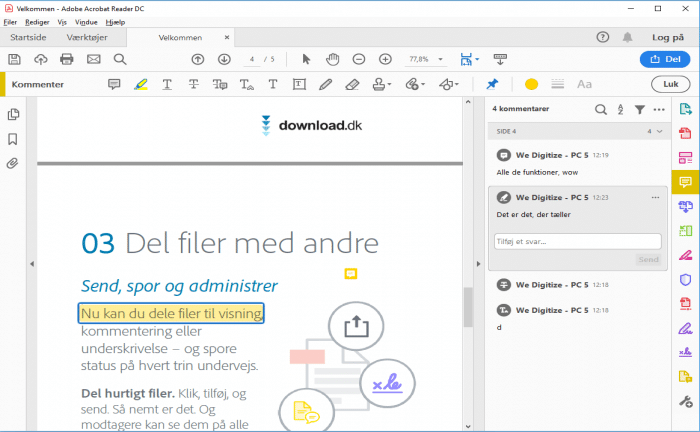
Adobe Reader has seen many improvements in recent years. The modern interface is clean and easy to navigate, and it opens even large PDFs quickly. It supports everything from digital signatures and form filling to integration with Adobe Cloud, where you can securely store your documents online.
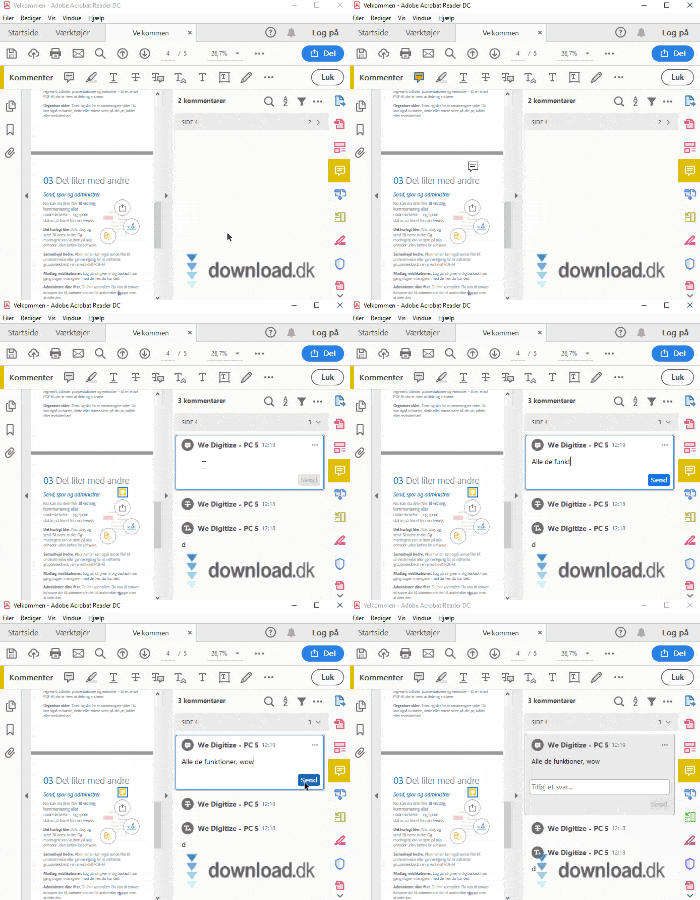
In our testing we saw no ads, no unnecessary pop-ups, and very fast startup. The new “Smart Tools” bar makes it easy to add notes, highlights, and comments directly in the document—perfect for students or office users.
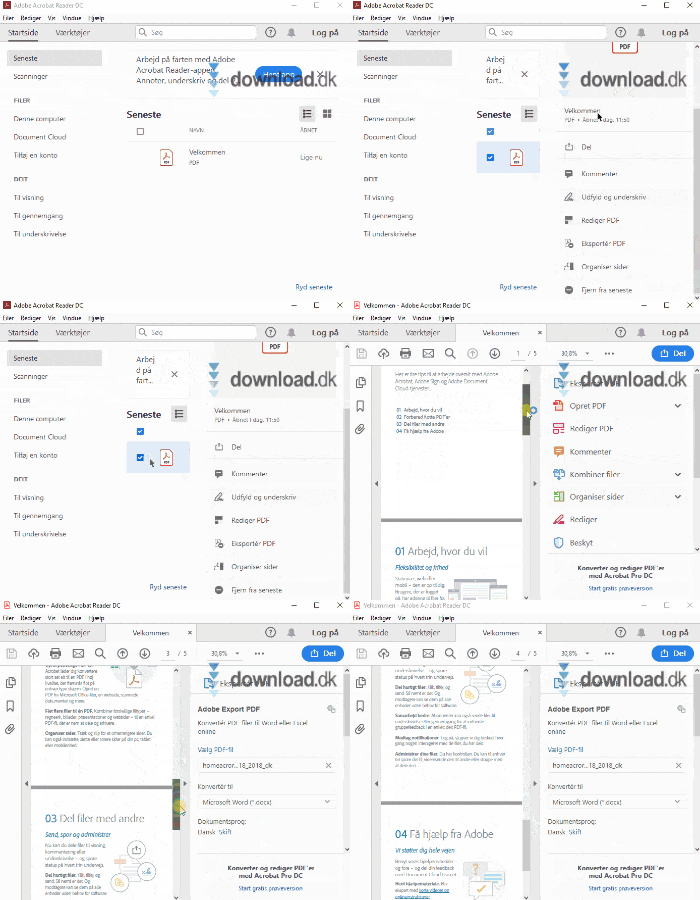
Adobe Reader on Windows 11
Installation on Windows 11 took under two minutes. The app automatically associates itself with PDF files by default, and you can choose to set Adobe as the default viewer directly in your browser.
There’s a built-in dark mode, which is great for longer reading sessions. We experienced no slowdowns, and CPU usage was minimal—even with multiple documents open.
macOS version
On Mac, Adobe Reader works almost identically to the Windows version, but with a slightly more minimalist design. The biggest advantage is full integration with Preview and Adobe Cloud, so documents can be opened directly from Finder.
Performance on macOS Sonoma was excellent—startup can feel a bit heavier than Apple’s own Preview app, though.
Adobe Reader for Android and iOS
The mobile versions of Adobe Acrobat Reader are surprisingly complete. You can sign, fill out forms, and save to the cloud.
The app is great for quick read-throughs, but PDFs with many graphical elements can feel a bit heavy on older phones.
A smart feature is “Liquid Mode,” which automatically reflows text so long documents are easier to read on a phone—something many competitors still lag behind.
Security and updates
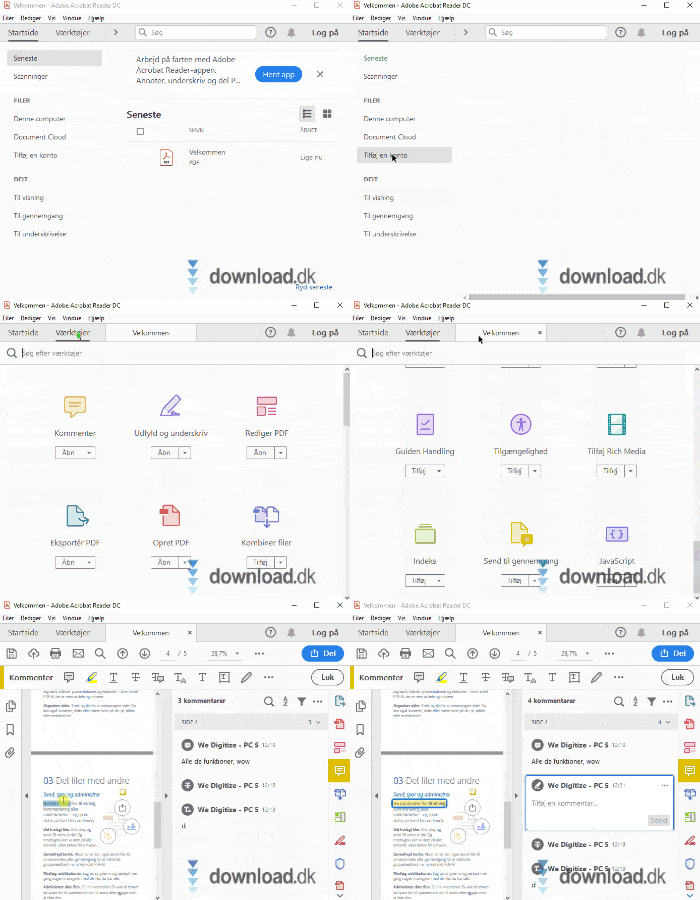
Adobe releases frequent security updates that install automatically in the background.
The PDF format is often targeted by malware, but Reader protects you with “Protected Mode,” which isolates potentially dangerous scripts inside PDFs.
We tested the app against a few test files from eicar.org—everything was correctly blocked.
Comparison with alternatives
There are free alternatives like Foxit Reader and SumatraPDF, but Adobe Reader is still the most complete solution—especially if you work with signatures, forms, or advanced documents.
On the other hand, it takes up a bit more disk space, and startup is slower than, for example, SumatraPDF.
Frequently asked questions about Adobe Acrobat Reader
What is Adobe Acrobat Reader?
Adobe Acrobat Reader is a free program from Adobe used to open, read, print, and comment on PDF files. It’s one of the most widely used PDF readers and works on Windows, macOS, Android, and iOS.
How do I download Adobe Reader for free?
You can download Adobe Acrobat Reader for free from Adobe’s official website. Click the download button on this page and choose the version for your operating system (Windows, Mac, iOS, or Android).
How do I update Adobe Acrobat Reader?
Open Adobe Reader, click “Help” in the menu bar, and select “Check for updates.” The app typically finds and installs the latest version automatically.
Is Adobe Reader safe to use?
Adobe Reader is generally safe when you download it from the official Adobe source and keep it updated. It also includes protection features that reduce the risk from malicious PDFs.
What’s the difference between Adobe Reader and Adobe Acrobat Pro?
Adobe Reader is free and primarily used to view and comment on PDFs. Acrobat Pro is the paid version with extra features like editing, converting, and more advanced document tools.
Top 5 tips for Adobe Acrobat Reader
Use “Liquid Mode” on mobile
Enable Liquid Mode to make PDF text easier to read on small screens.
Sign documents digitally
With “Fill & Sign,” you can sign documents directly with your mouse or touch—no printer needed.
Add comments and notes
Click the “Comment” tool to highlight text or add notes for collaboration.
Switch to dark mode
Under “View,” you can choose dark mode to reduce eye strain during long reading sessions.
Save your files to Adobe Cloud
Sign in with your Adobe account to access your documents from any device.



