
 Martin Jørgensen
Conky – system monitoring right on your Linux desktop
Conky is a lightweight yet extremely powerful system monitoring tool for Linux. It can display everything from CPU and RAM usage to network speeds and temperatures—directly as widgets on your desktop. It’s endlessly customizable, and we tested it on Ubuntu 24.04, where it ran smoothly with negligible system impact.
Features and capabilities of Conky
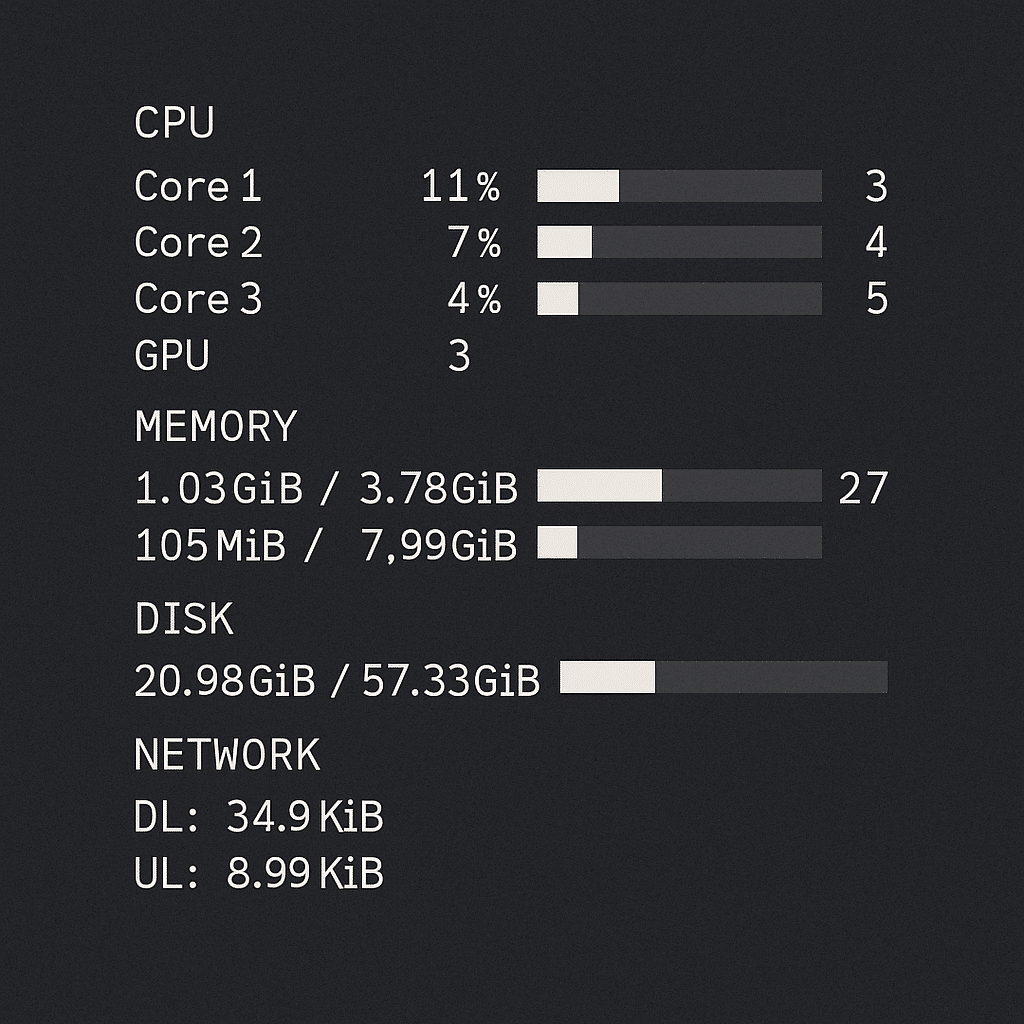
Conky can display virtually any system data you can imagine, and during our tests we were genuinely surprised by how detailed and accurate the information was presented. We started with a stock setup on an Ubuntu 24.04 PC, where CPU load and RAM usage appeared in a discreet overlay in the corner. Then we gradually added more modules, and even with half a dozen widgets running there was no noticeable difference in system performance.
✅ CPU and GPU usage – we could watch core activity live and see how much work the GPU did while running benchmarks.
✅ RAM and swap status – Conky precisely showed how much memory was in use and how much swap was active.
✅ Disk usage per partition – we tested with multiple SSDs and external drives, and they were detected with both space usage and I/O activity.
✅ Network speeds and IP addresses – during download and streaming tests, Conky displayed real-time upload and download speeds along with the IP address.
✅ Temperatures from sensors – CPU and GPU temperatures were read correctly, and we could track changes as we stressed the system.
✅ Calendar, clock, and media players – we set Conky to show calendar integration and a media player (Rhythmbox), and it worked without issues.
All of this is presented as transparent overlays or small boxes on the desktop. We tried both minimalist setups with just numbers and graphs, but also avancerede HUD-lignende temaer, hvor data practically floated across the screen. Regardless of the setup, it ran stably and we never experienced freezes or crashes—even on an older test machine with modest resources.
Customization and themes
Conky’s customization is what makes it especially popular. You can either write your own scripts in Lua or download ready-made themes from the community. We tried a few different themes—from minimalist status bars to wild, sci-fi–style HUD displays. Installation af themes required a bit of manual setup, but once it was running, it worked reliably.
Performance and system requirements
Even on an older test machine with just 2 GB of RAM and a dual-core CPU, Conky used under 1% CPU in the background. It’s ideal for both modern Linux distros and lighter systems where you want a polished, functional desktop without slowing the machine down.
Challenges and user experience
The biggest downside to Conky is the learning curve. The default setup is very basic, and if you want a flot theme, you’ll often end up tinkering with configuration files. Fortunately, there are plenty of guides online, and we quickly got the hang of it once we started experimenting.
Top 5 tips for Conky
Conky is a lightweight system monitor for Linux that can display CPU, RAM, network, temperatures, and much more right on your desktop. The program can be customized with themes and scripts.
On Ubuntu, install Conky via the terminal with sudo apt install conky-all. Other distributions provide Conky in their package managers or via source from GitHub.
Yes, Conky has a large community sharing ready-made themes. You can download and customize them to match your desktop environment.
Conky uses very few resources. Even on ældre maskiner with a few GB of RAM, CPU usage typically stays under 1%.
For beginners, setup can be challenging because it requires editing configuration files. With guides and ready-made themes, it’s much easier to get started.



