
 Martin Jørgensen
Filelight – take control of your disk space with visual charts
Filelight is a simple yet powerful disk space analyzer. It visualizes your storage usage with colorful, interactive charts that make it easy to identify which folders and files take up the most space.
We tested Filelight on a Windows 11 machine, and it installed quickly without issues. The interface is intuitive, and you don’t need to be a tech expert to benefit from the visual overviews.
Features and ease of use
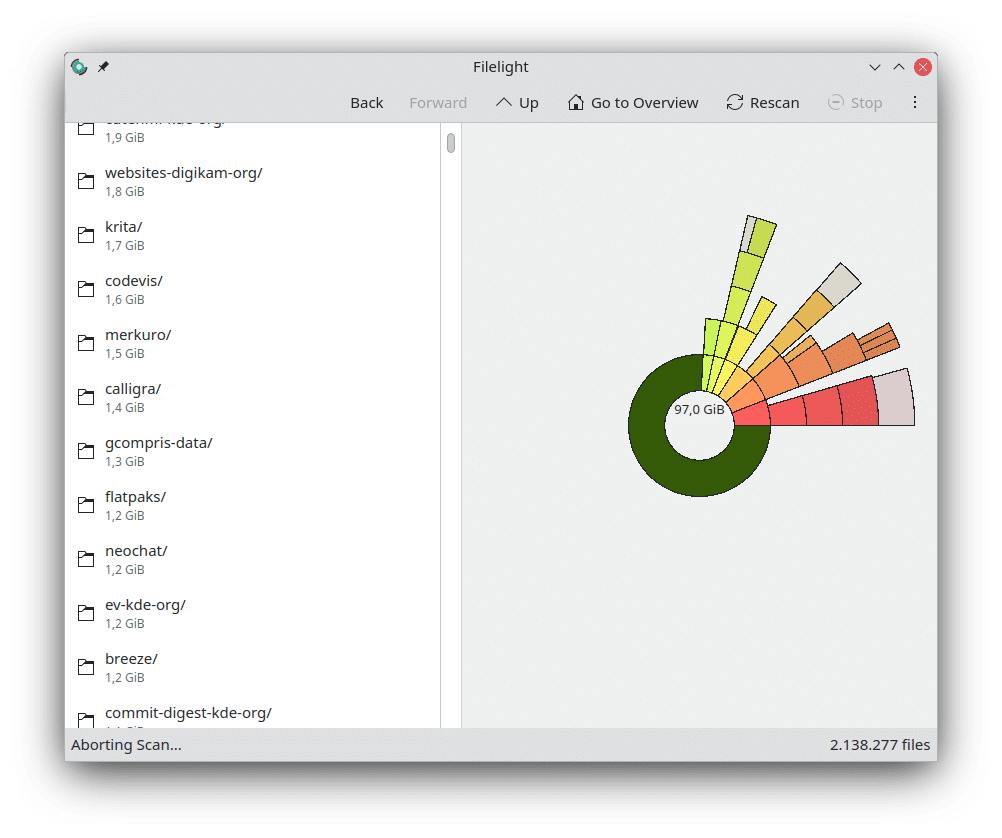
Filelight presents your drive’s contents in a circular sunburst chart, where each ring represents a subfolder. The farther you move out from the center, the deeper you go into the folder structure. It provides an intuitive, visual overview that lets you quickly zoom into the areas that consume the most space—without opening countless folders manually.
You can:
- Scan entire drives or selected folders — ideal when you only want to focus on a specific area, e.g., your “Downloads” folder.
- Export results — save analyses and compare your disk usage over time.
- Click sectors directly — a single click on a colored segment opens the corresponding folder in your file system.
- Exclude specific folders from scans — e.g., system or cache folders — so the analysis focuses on your own data.
In our test on a 1 TB SSD, a full scan took under a minute, and even when navigating complex folder structures, the app responded almost instantly. We also noticed it uses very few system resources, letting you run Filelight in the background while you keep working.
This speed and light footprint make Filelight a tool you’ll quickly come back to whenever your drive starts to fill up.
Graphics and design
The design is simple but practical. The color coding makes it easy to distinguish between folders and files, and hover effects provide precise information without overcrowding the view. While it’s not as visually polished as some commercial alternatives, it works very well for its purpose.
Platforms and compatibility
Filelight is developed for Linux (the KDE project), but there are also unofficial builds for Windows and macOS. We found the Windows version to be stable, though the most frequent updates still arrive on Linux.
✅ Linux (KDE Plasma and other distributions)
✅ Windows (unofficial build)
✅ macOS (unofficial build)
Strengths and weaknesses
Filelight stands out by being open source and completely free. It gives you a clear overview without forcing you to wrestle with complicated menus. However, its features are fairly limited compared to paid alternatives like WinDirStat or SpaceSniffer.
Top 5 tips for Filelight
Filelight is a free, open-source program that visualizes your disk usage in circular charts, so you can easily see which folders and files take up the most space.
The program scans your drives or folders and presents the result in an interactive ‘sunburst chart’. You can click down the structure to uncover space hogs.
Yes, but it’s primarily developed for Linux (KDE). Unofficial builds for both Windows and macOS are available and work well in most cases.
No. Filelight only shows where space is used. If you want to clean up, delete files via your file system or use a dedicated cleanup tool.
Filelight is faster and simpler to use, while WinDirStat offers more advanced features. The right choice depends on whether you want simplicity or extra tools.



