
 Martin Jørgensen
iCloud for Windows – get the best of Apple on your PC
iCloud is Apple’s popular cloud service used by millions every day. Most people think of iCloud as something tied to iPhone, iPad, and Mac, but with iCloud for Windows, you can easily connect your PC to Apple’s ecosystem. That means you can access your photos, documents, contacts, and more—right from your Windows computer.
We tested iCloud on a standard Windows 11 PC and found the setup straightforward, though it required a few extra steps compared to a Mac. After installation, we signed in with an Apple ID and confirmed the login via two-factor authentication (a code sent to iPhone). From there, we chose what to sync: Photos, iCloud Drive, Mail, Contacts, Calendars, or Safari bookmarks.
Installation and setup
The install took under five minutes. You can download the installer directly from Apple’s official website, and the client feels similar to other cloud apps like OneDrive and Google Drive.
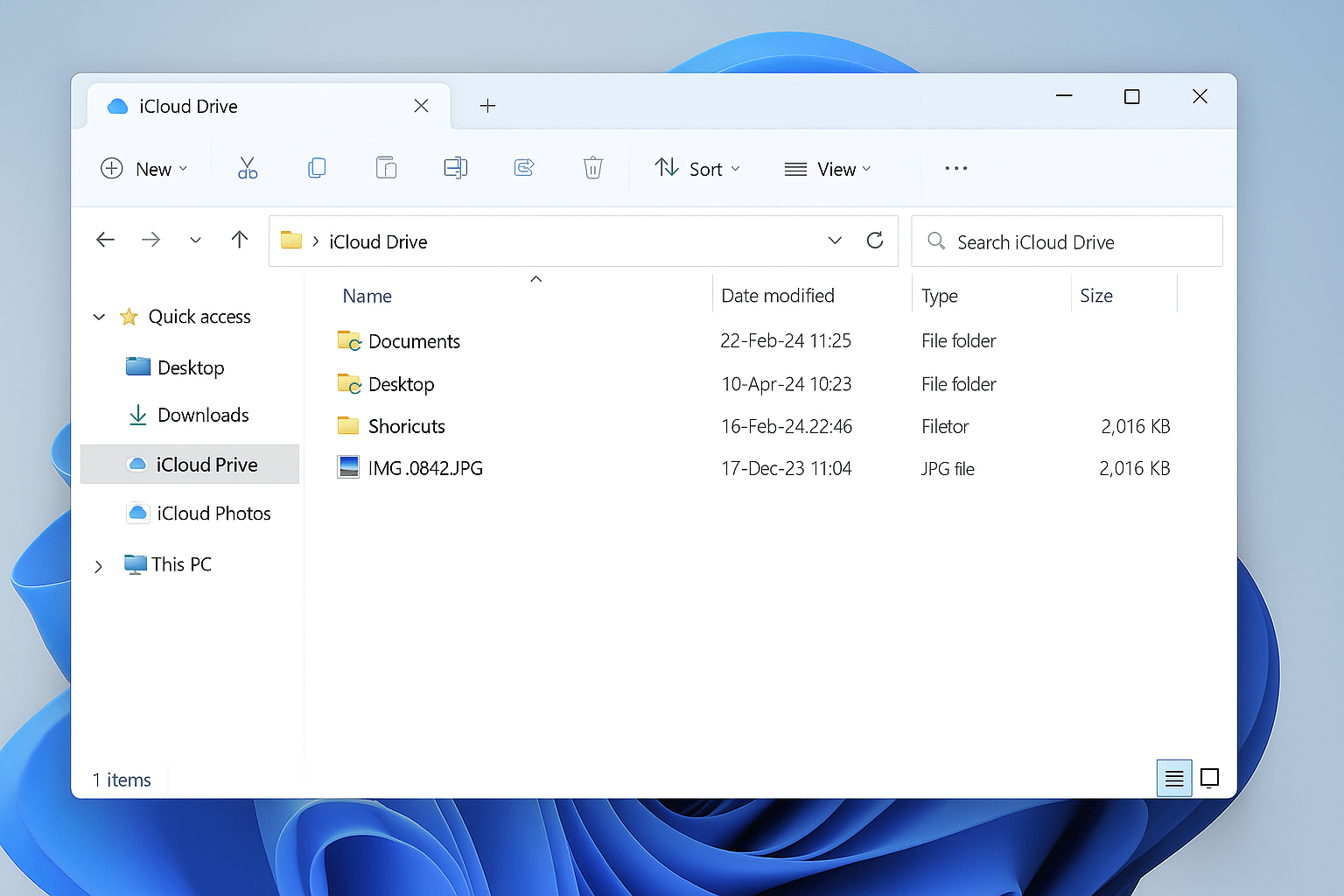
After the first sign-in, we reached a control panel where we could enable or disable different features. We turned on Photos and iCloud Drive right away to test the File Explorer integration.
One thing we noticed was that photos started appearing in the “iCloud Photos” folder within minutes of installation. It felt almost like having the iPhone camera connected directly to the computer—no cables or manual transfers needed.
Features and capabilities
When you use iCloud for Windows, you get access to virtually the same features Mac users know:
✅ Photos and videos – automatic upload from iPhone to iCloud, so you can view and download them directly from File Explorer.
✅ iCloud Drive – your documents, presentations, and other files live in the cloud but appear as a folder in Windows.
✅ Mail, contacts, and calendars – integration with Outlook means you can view your iCloud calendar or reach contacts without opening your iPhone.
✅ Safari bookmarks – if you use Safari on iPhone or iPad, your bookmarks can sync with Edge, Chrome, or Firefox.
✅ Shared folders – makes it easy to collaborate with family or coworkers in real time.
Hands-on experience
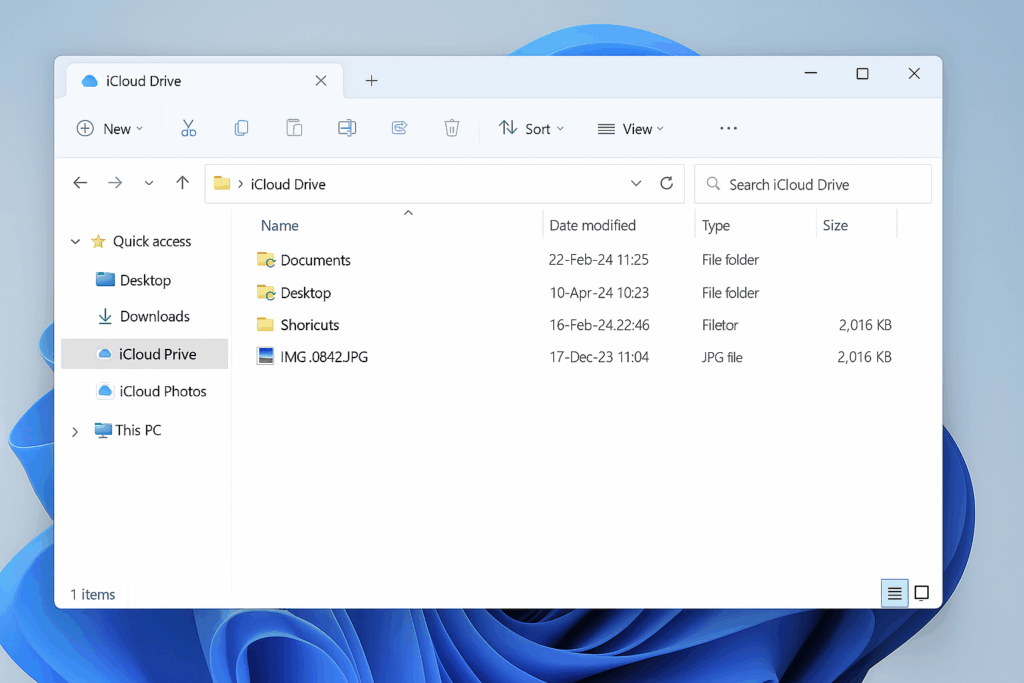
In our tests, iCloud was stable, though file sync speed varied with the internet connection. Uploading large iPhone videos naturally took some time, but documents and photos became available on the PC very quickly.
The interface isn’t as polished as on a Mac, but Apple has done a solid job adapting iCloud to Windows. The File Explorer integration is a clear advantage—it doesn’t feel like a separate app, just another folder.
We did notice that iCloud can use noticeable system resources while running in the background, especially during the initial sync. That can be a drawback on older PCs.
Design and interface
The design is minimalist and very Apple. The control panel is extremely simple—some might even say too simple. You won’t find as many detailed settings as in, for example, Google Drive, but that’s the point: iCloud aims to be easy.
The icons in File Explorer look like regular folders, with small cloud badges indicating whether a file is stored locally or only in the cloud. It’s intuitive and works well.
Security and privacy
One of iCloud’s biggest strengths is security. All files are encrypted both in transit and at rest. Apple is known for its privacy focus, and you can enable two-factor authentication, which we did during testing. That means even if someone knows your Apple ID and password, they still can’t sign in without your iPhone or another trusted device to approve the login.
Note that Apple doesn’t provide unlimited space. The free plan includes only 5 GB, which fills up fast if you take lots of photos and videos.
Ease of use
We found iCloud easy to use, though it still feels different from Mac. On a Mac, iCloud is deeply integrated throughout the system, while on Windows it feels more like an added layer.
That said, it works very well if you just want seamless access to your files, photos, and contacts across platforms.
If you’re already invested in Apple’s ecosystem, iCloud is almost indispensable. If you mainly use Windows and Android, it makes less sense—here, Google Drive or OneDrive are often better alternatives.
Comparison with competitors
- Google Drive: Faster web interface, but less integrated with Windows.
- OneDrive: Best for Windows, but lacks iPhone integration on the same level as iCloud.
- Dropbox: Strong sharing features, but requires a separate subscription.
iCloud for Windows is ideal if you already have an iPhone or iPad but also use a PC in your daily routine.
Top 5 tips for iCloud for Windows
Make sure your photos and videos are always backed up to iCloud so you never lose your memories.
Store large files in the cloud and free up space on your PC so you can work efficiently without filling your drive.
Get the same Safari bookmarks on iPhone, iPad, and Windows—it saves time every day.
Use iCloud to share folders so everyone can edit and add files in real time—perfect for collaboration or family albums.
The free 5 GB fills up quickly. For a small fee you can get 50 GB, 200 GB, or 2 TB and share the space with your family.



