
 Martin Jørgensen
123 Photo Viewer – a fast, flexible image viewer for Windows
Note: In the Microsoft Store, the app currently appears as “123 Photos: View, Edit & Convert”. It’s the same app that was previously marketed as 123 Photo Viewer, and the features are virtually identical. In this review we continue to use the name 123 Photo Viewer, as it remains the most widely used name among users and other software sources.
123 Photo Viewer is a simple yet surprisingly capable Windows image viewer that combines fast browsing, basic editing tools, and folder-based organization—making it easy to manage large photo collections. We tested it on a standard Windows 11 PC with about 2,000 images. While we ran into a couple of minor quirks, we were pleasantly surprised by how quickly it handled common formats like JPG, PNG, BMP, and WebP.
The app is an obvious alternative to Microsoft Photos, especially if you want a no‑nonsense tool without unnecessary bloat.
Organizing photos in folders

Instead of opening single files like many other viewers, 123 Photo Viewer requires you to add entire folders of images. That can be a folder from your desktop, OneDrive, Dropbox, or an external drive.
It might sound inconvenient, but it actually makes it easier to keep an overview—especially if you have thousands of photos. In testing, the app could become unstable if you open folders with “a bit of everything.” Folders that include non-image files can sometimes cause the program to crash. Not ideal—but manageable if you keep folders clean.
Basic photo editing

123 Photo Viewer isn’t a Photoshop replacement—and it doesn’t need to be. Most users will be happy with features like:
– Rotation
– Cropping
– A set of simple filters
– Slideshow mode
– Saving to many different image formats
– Fast conversion between file formats
We especially used crop and filters while testing with vacation photos, and they worked well. It feels more flexible than the built‑in Windows Photos app, and the interface is quicker to navigate.
Slideshow and desktop features

A neat extra is the ability to set images directly as:
– Screensaver
– Desktop background
If you have a folder with your family’s best photos, you can quickly start a slideshow that runs in the background when your PC is idle. Not every viewer includes this—and it’s surprisingly useful.
Design and interface
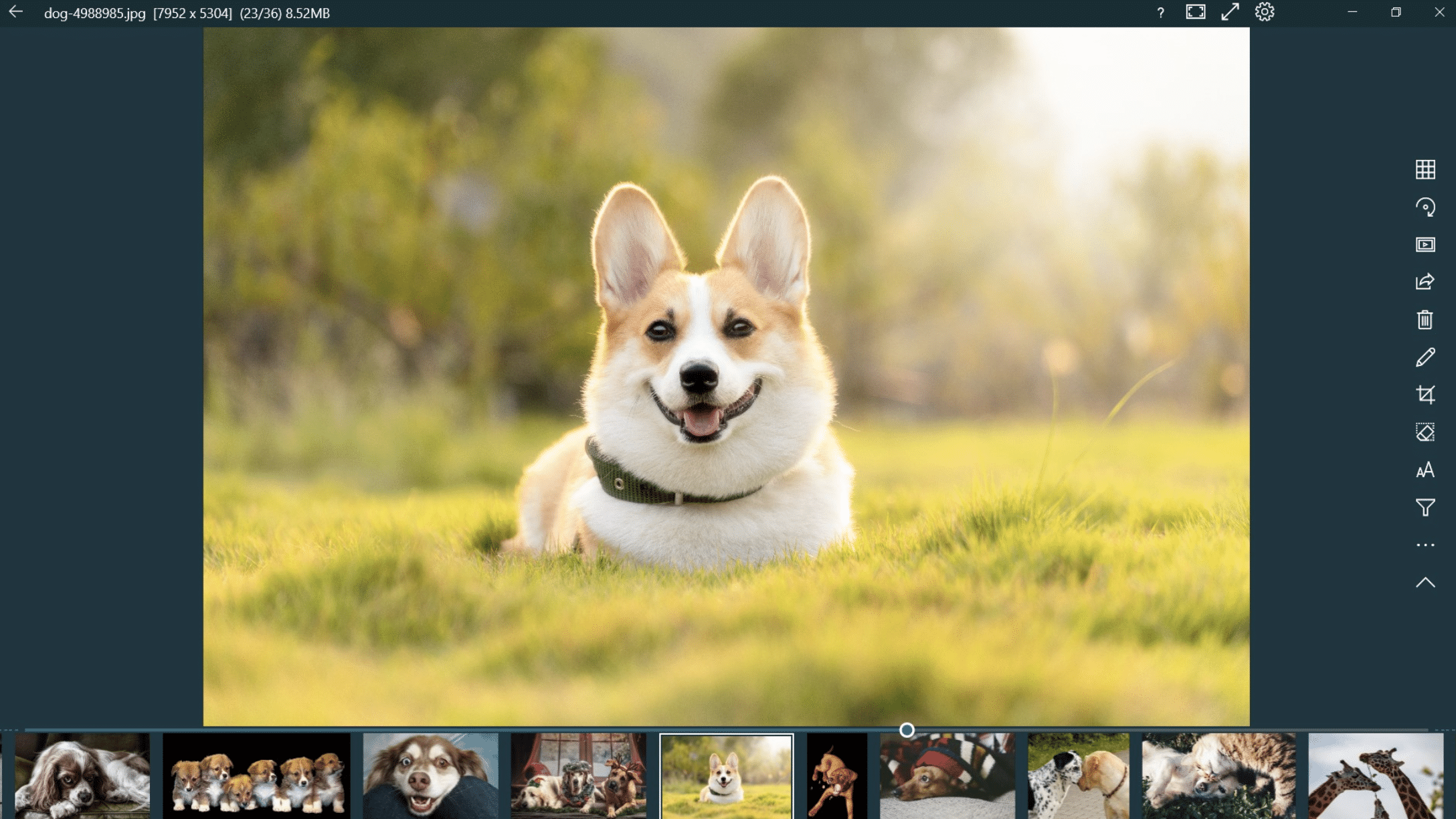
The design is simple and focused. When you open a photo, it appears centered on the screen while your other images are shown in a strip at the bottom—like a gallery. From there, you can jump between photos with the mouse or arrow keys. Editing controls on the right are intuitive and quick to learn.
We would have liked an option to hide the bottom gallery in full‑screen mode—but that’s a minor detail.
New name in Microsoft Store
While reviewing the app, we noticed the developer has given it a new title in the Microsoft Store: “123 Photos: View, Edit & Convert”. This doesn’t change the features—it still works like the familiar 123 Photo Viewer. The rename seems like a branding refresh, likely to highlight that the app can also edit and convert images. It doesn’t materially affect the user experience.
Alternatives to 123 Photo Viewer
If you want more control over your images, consider FocusOn Image Viewer. It’s also free, but offers a more advanced set of editing tools and feels noticeably more stable—especially with very large folders.
When small details make the difference

Windows’ default tools are fine for basic viewing—but not much more. 123 Photo Viewer gives you greater flexibility, faster browsing, and a few small yet important extras.
In our testing, we kept using it for a few days because it simply felt faster than the Photos app. Just be aware that stability isn’t perfect, and the app is only available in English.
Top 5 tips for 123 Photo Viewer
Use folders without mixed file types
Avoid putting PDFs, ZIP files, and other non-images in your folders—it significantly improves stability.
Create a “Favorites” folder
Make a separate folder with your best photos—your slideshows will be far more effective.
Use formats like WebP
123 Photo Viewer opens WebP extremely fast—perfect for browsing web‑optimized images.
Try the simple filters
Some filters are surprisingly good, especially when you just want a small boost before sharing.
Use keyboard shortcuts
The arrow keys and Space make navigation much faster—especially in large libraries.
123 Photo Viewer FAQ
123 Photo Viewer is a fast image viewer for Windows that makes it easy to browse and organize your photos in folders. The program is free to download and use in its basic version, and for everyday viewing and quick edits, it offers more than enough features for most people.
Yes, 123 Photo Viewer is built for modern Windows systems and works on both Windows 10 and Windows 11. We tested it on a standard Windows 11 PC with several thousand photos, and for normal use it ran fast and without major issues—as long as the folders primarily contained image files.
Yes. You can make simple edits directly in 123 Photo Viewer. You can rotate photos, crop them, view them as a slideshow, and apply a handful of basic filters. It’s not a full-fledged image editor, but for quick adjustments before sharing or printing, the tools are very useful.
The program can become unstable if you add folders that also contain many non-image file types, such as documents, archives, or other system files. To avoid crashes, we recommend using folders that primarily contain image files and splitting very large collections into smaller folders if needed.
123 Photo Viewer installs like a regular Windows app and doesn’t require an account or uploading your images to a cloud service. That makes it a solid choice if you prefer to keep photos local. If you want a more advanced and stable viewer, consider FocusOn Image Viewer or other dedicated photo editors as a supplement.



