
 Martin Jørgensen
DaVinci Resolve – Professional video editing for free
DaVinci Resolve is one of the world’s most advanced and complete video editors—and it’s completely free to download. Developed by Blackmagic Design, it’s used by professional filmmakers and hobby editors alike. It combines editing, color correction, visual effects, lydredigering and AI tools in a single platform.
We tested DaVinci Resolve on a Windows 11 PC with an RTX 4070 GPU and found the installation quick and stable. However, the initial setup takes some patience for new users, since the interface includes many avancerede funktioner.
Features and workflow in DaVinci Resolve
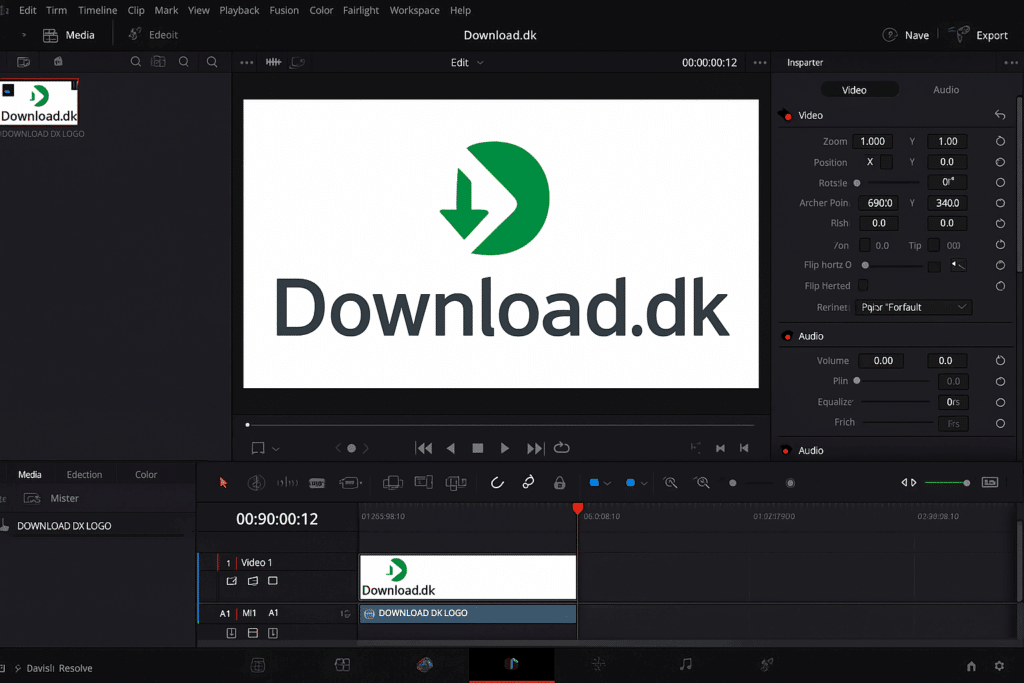
DaVinci Resolve is organized around five main workspaces:
- Edit: Classic timeline editing with cuts, transitions, and titles.
- Cut: A fast, minimalist interface for short videos.
- Fusion: A powerful module for VFX and motion graphics, similar to After Effects.
- Color: World‑class color grading—the reason it’s a standard in the film industry.
- Fairlight: Professional lydredigering directly in your project.
For YouTubers and streamers, the Cut workspace and automatic color profiles are especially popular because they let you create great‑looking videos without expensive plugins.
Free vs. Studio version
The free edition of DaVinci Resolve includes almost all the features an almindelig user needs. The paid Studio version adds advanced capabilities such as:
- AI‑driven noise reduction and auto face detection
- 3D tools and motion blur effects
- Support for multiple GPUs and 10‑bit color
For 99% of hobbyists, the free version is more than enough.
Performance and hardware requirements
DaVinci Resolve is resource‑intensive software and requires a modern computer with a capable GPU. We tested it on both a typical laptop and a desktop with NVIDIA RTX, and the difference was significant. On a weaker machine, large 4K projects can feel sluggish.
Minimum recommended specs:
- CPU: Intel i7 or Ryzen 7
- GPU: Minimum 4 GB VRAM
- RAM: 16 GB
- Storage: SSD recommended
Comparison with Adobe Premiere Pro
DaVinci Resolve is often compared to Adobe Premiere Pro, but the differences are clear:
- Resolve is free with a one‑time install, while Premiere requires a subscription.
- Resolve is stronger for color grading and audio editing.
- Premiere has a slightly gentler learning curve and better integration with other Adobe apps.
For users who prefer to own their tools and avoid ongoing fees, Resolve is the best choice in 2025.
Top 5 tips for DaVinci Resolve
1. Use the “Cut” page for quick projects
Ideal for YouTube Shorts or sociale medier—editing here is blazing fast.
2. Save projects in “Project Manager”
Resolve can crash on heavy projects—autosave and backups are invaluable.
3. Use LUTs for quick color correction
Import popular film LUTs to give your videos a professional look in seconds.
4. Enable “Proxy Mode”
If your PC struggles, enable proxy files for significantly smoother playback.
5. Leverage Fairlight for audio mixing
Resolve has a full DAW built in—use it to clean up and normalize audio directly in your project.



