 Martin Jørgensen
PDFgear is surprisingly powerful for the price — free
PDFgear is a free PDF editor for Windows, macOS, iOS, and Android that lets you read, edit, convert, merge, split, sign, and annotate PDFs without first buying an expensive subscription. The app is officially marketed as free with no login required for everyday PDF tasks, which is refreshing in a category where many alternatives quickly lock features behind paywalls.
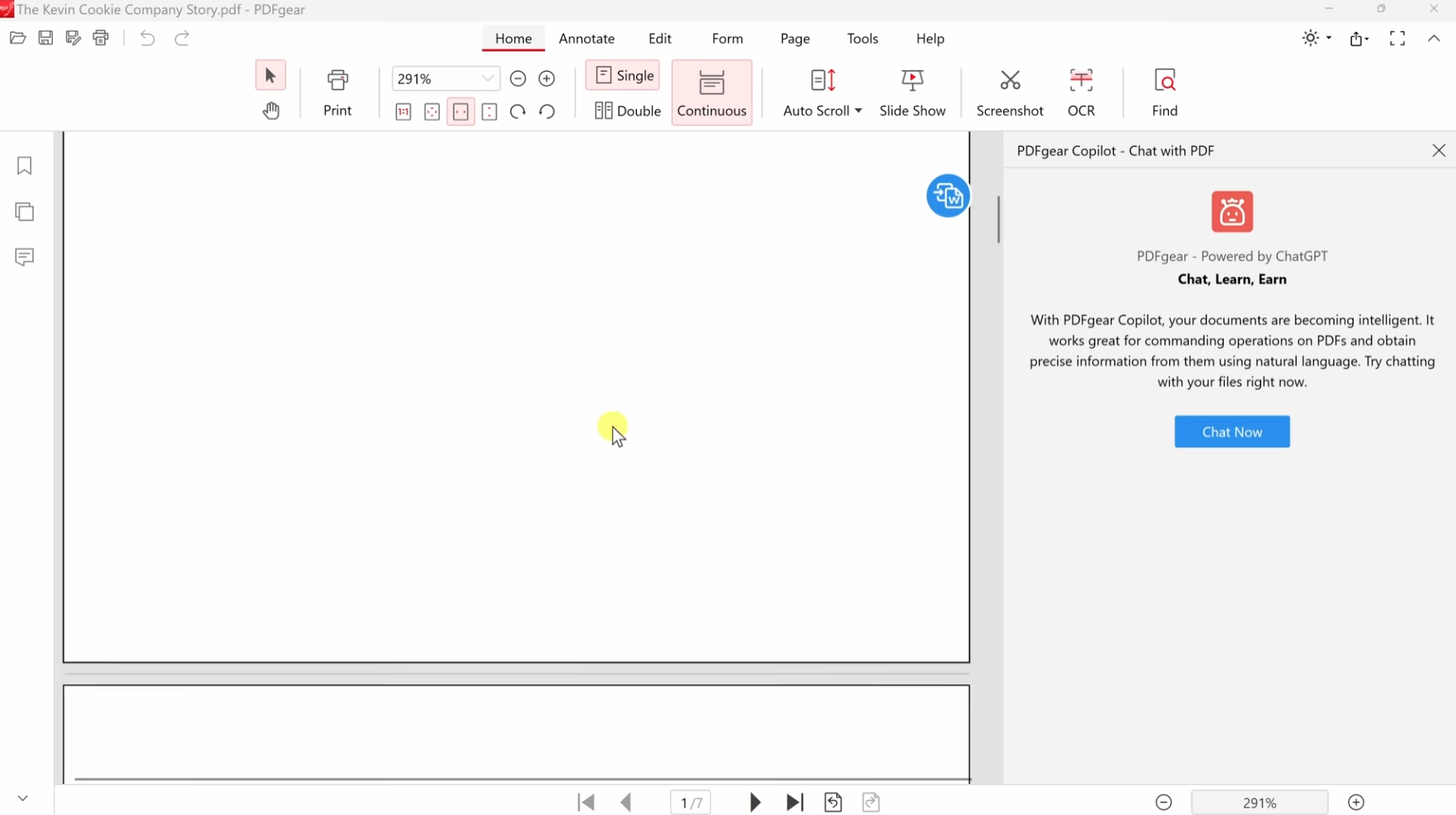
We tested PDFgear on a Windows 11 PC with short PDFs, a longer manual, and a scanned test file. Our first impression was actually a bit surprising: PDFgear doesn’t feel like a typical “free PDF app” that constantly reminds you to upgrade. The interface is tidy, features are easy to find, and editing text, organizing pages, and converting to Word worked better than we expected.
Free PDF editor for Windows and Mac
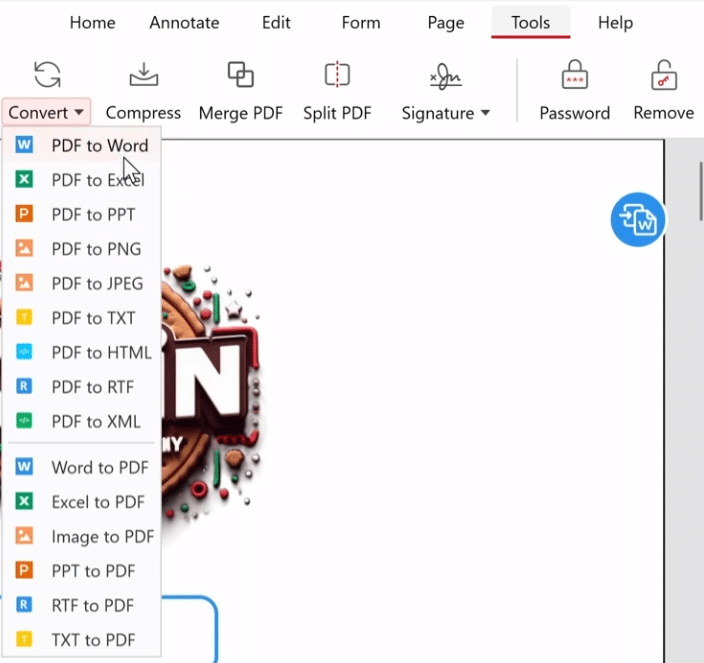
PDFgear hits a very practical need: you have a PDF you need to fix, fill out, sign, or convert — and you don’t want to start a subscription for a single task. For that, PDFgear is one of the best free choices right now.
You can use it as a PDF reader, PDF editor, converter, and page organizer. That means you can open a PDF, delete pages, rotate pages, add comments, fill forms, insert signatures, and export to other formats without switching between multiple small tools. PDFgear also offers online PDF tools directly in the browser, but the desktop version is clearly more interesting if you work with files locally.
How PDFgear feels to use
The best thing about PDFgear is that it doesn’t try to make PDF editing more complicated than it is. Open a PDF and you get a classic top menu with tools for editing, comments, conversion, and page management. It’s similar to what many know from Office apps, keeping the learning curve low.
Three things worked especially well in our testing:
Text editing in standard PDFs was quick and easy as long as the file wasn’t overly complex. The page tools made it simple to move, delete, and rotate pages. And converting from PDF to Word was good enough for typical documents, although advanced layouts with lots of tables still require some manual cleanup afterward.
It isn’t a perfect app. When a PDF has many layers, unusual fonts, or a heavy graphic layout, editing can still be a bit uneven. That’s not unique to PDFgear — it applies to almost all PDF editors, including several paid ones.
PDFgear AI Copilot and smart PDF features
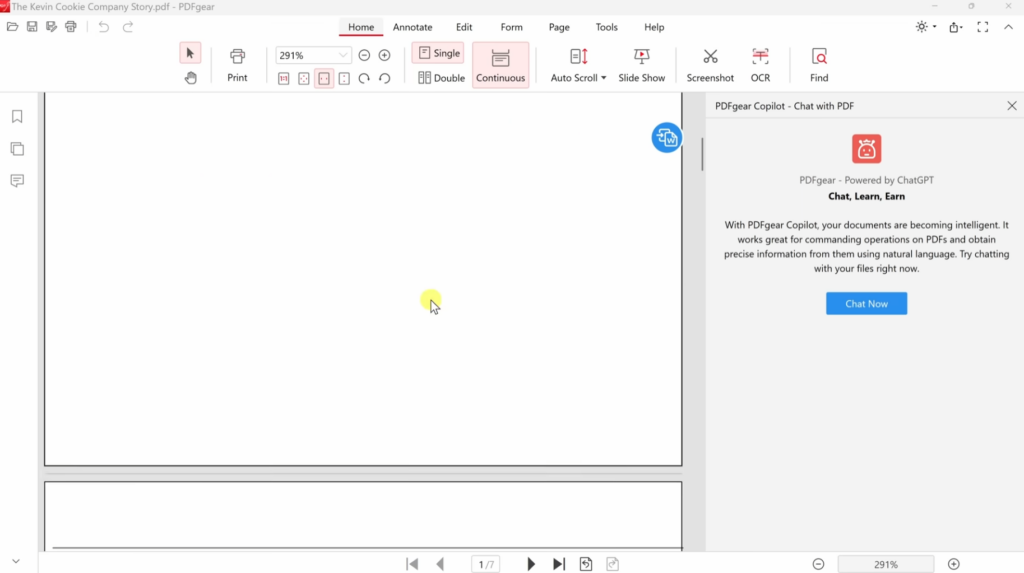
One of the newer reasons to choose PDFgear is its built-in AI features. PDFgear describes the app as AI-powered, and the Copilot can be used to ask questions about a PDF, get summaries, and extract key information from longer documents.
This is especially useful for manuals, reports, contracts, and coursework. Instead of scrolling around for a specific section, you can ask the document directly. It works best on text-based PDFs, while scanned documents depend more on OCR quality.
PDFgear has also added features like OCR, editing, redaction/blur of sensitive content, digital signatures, and better handling of attachments in PDFs according to recent release notes and changelog updates.
Is PDFgear safe to use?
PDFgear appears to be a serious and legitimate PDF app, but as with any PDF tool you should consider which documents you upload to online tools or AI features. If you just need to fix, merge, or convert everyday files, the desktop app is a fine choice. If you work with sensitive documents like contracts, pay stubs, health information, or customer data, use local features whenever possible and avoid sending content to online tools.
We always recommend downloading PDFgear from the official website. It minimizes the risk of unwanted installers, outdated versions, or third-party downloads with extra software.
PDFgear vs. Adobe Acrobat and other alternatives
Adobe Acrobat is still more advanced for businesses, compliance, professional workflows, and heavy PDF production. But for everyday users, students, small businesses, and home offices, PDFgear is far more attractive on price.
Compared to many free PDF apps, PDFgear feels more complete. You don’t just get a PDF reader, but a true tool to edit, convert, and organize files. Compared to browser-based PDF tools, the desktop version also lets you work more locally and more stably with larger files.
If you only need to read PDFs, Microsoft Edge or Adobe Reader is enough. If you want to edit text, combine files, convert PDF to Word, or use AI to understand long documents, PDFgear is the better bet.
Who should download PDFgear?
PDFgear is a great fit if you regularly receive PDFs and want to do more than just open them. That could be students, freelancers, office users, community groups and nonprofits, small businesses, or home users who occasionally need to edit, sign, or merge documents.
It’s also a good choice if you’ve previously used small online PDF tools for one thing at a time. With PDFgear you get many of the same features in one place, which makes everyday work a lot easier.
The most impressive part is how little PDFgear demands from the user
PDFgear isn’t the most advanced PDF app on the market, but it’s one of the most interesting free alternatives. It starts quickly, feels approachable, and has enough features for most PDF tasks. We especially liked that it doesn’t feel like a demo disguised as free software.
There’s still room for improvement. Advanced documents can cause layout issues, and the AI features should be used carefully if documents contain private information. Overall, PDFgear is a strong free PDF editor for Windows and Mac — and a program we’d gladly keep installed on a typical work computer.
Top 5 tips for PDFgear
Use the desktop version for private documents
PDFgear offers both desktop apps and online tools, but sensitive documents should generally be handled locally on your own computer. That applies especially to contracts, pay stubs, customer data, and personal papers.
Convert PDF to Word — then check the layout
PDFgear can convert PDFs to Word, which is handy when you need to edit larger amounts of text. Always spend a minute checking tables, images, and line breaks afterward, since PDF layouts don’t always translate perfectly.
Use the page tools before you send a PDF
If you’re sending a document to a colleague, client, or government agency, use PDFgear to remove blank pages, rotate skewed pages, and combine relevant files into one PDF. It looks more professional and makes the file easier to read.
Let the AI feature summarize long PDFs
PDFgear Copilot can be helpful for long reports, manuals, and coursework. Ask specific questions about the document instead of requesting a general summary — you’ll usually get more useful answers.
Always save a copy before major edits
PDF editing can change layout, fonts, and page elements. Save a copy of the original before you start deleting pages, editing text, or compressing the document.